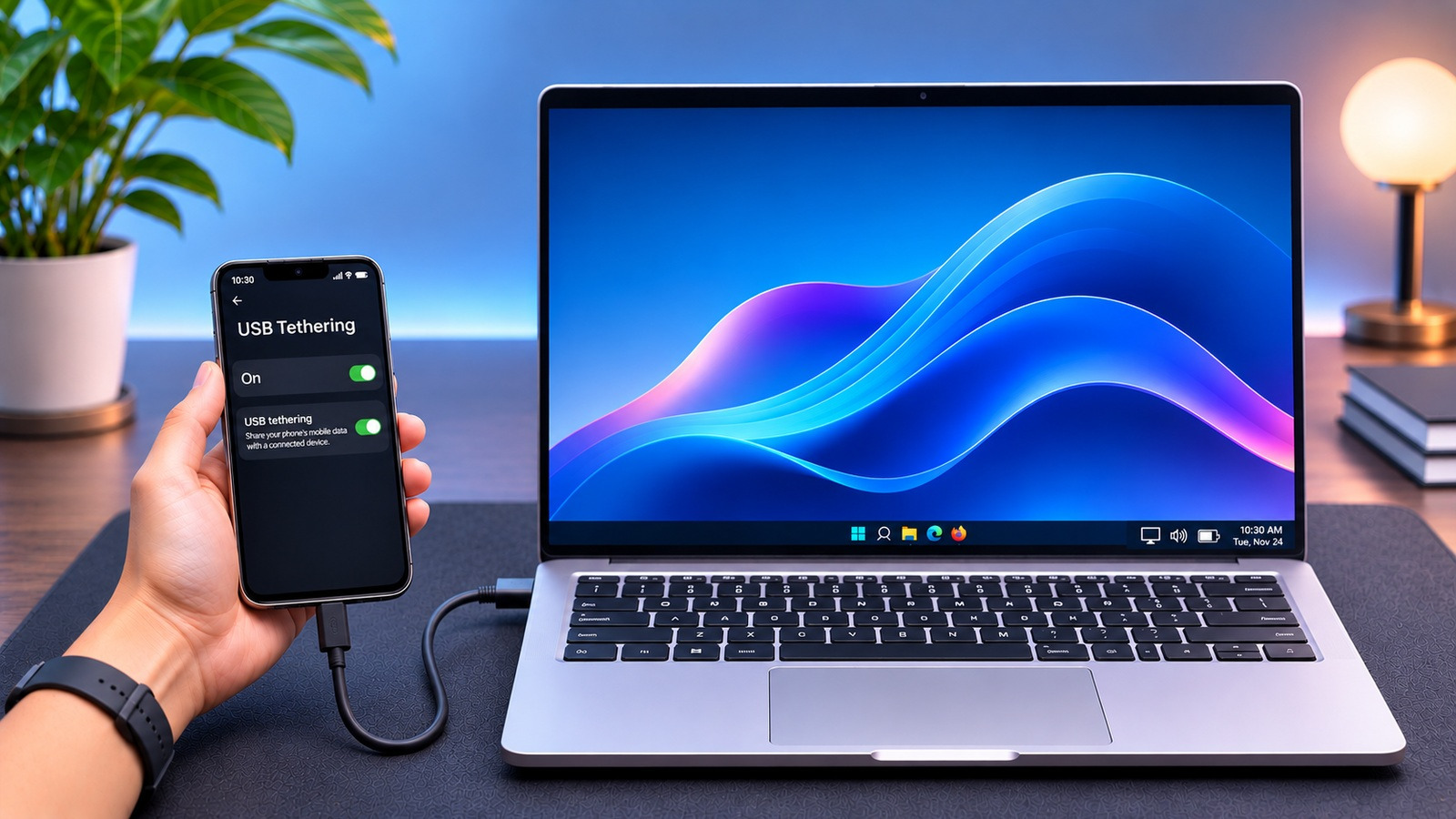


When your home Wi-Fi stops working, or you need to get a laptop online while travelling, your Android phone can share its internet connection through a USB cable. This is called USB tethering. It gives a Windows 11 PC a wired network connection through your phone, and it can be more convenient than setting up a Wi-Fi hotspot.
You need an Android phone with an active mobile data connection, a USB cable that supports data, and a Windows 11 computer. Your mobile operator may restrict tethering or charge extra for it, so check your plan before you start. Google also notes that the exact steps can vary by Android version and phone manufacturer.
How to connect an Android phone to Windows 11 using USB tethering
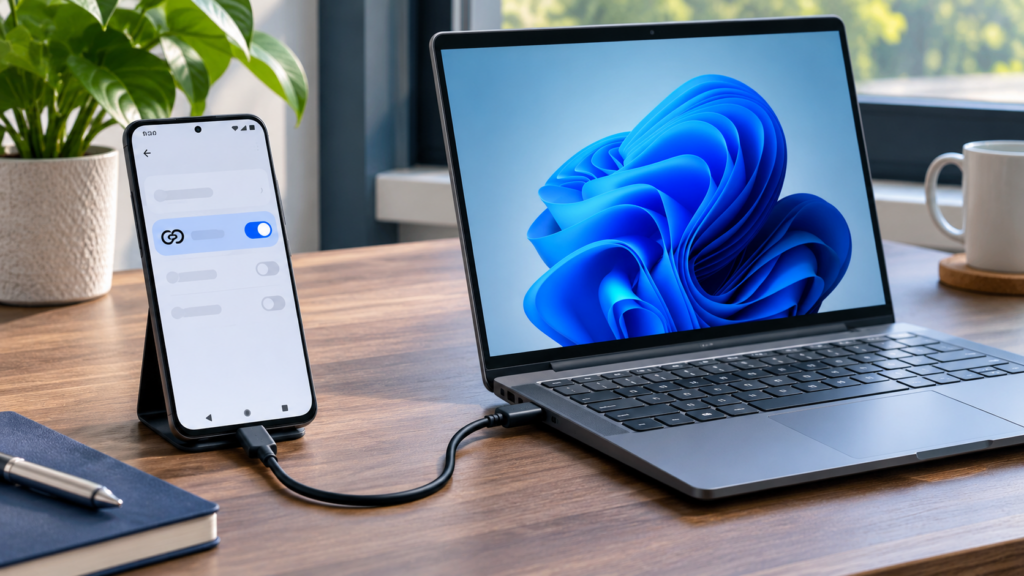
1. Check your phone’s mobile data connection
First, make sure the phone can browse the web using its own mobile connection. Turn off Wi-Fi temporarily and open a website in your phone’s browser. If the page does not load, fix the mobile connection before trying to share it.
Check that your plan includes tethering. Some carriers limit hotspot or tethering use, and a separate allowance may apply. If you have a limited package, set a mobile data warning and limit on Android so your phone can alert you as usage approaches the amount you choose. The carrier’s app or account page remains the best place to confirm your actual remaining allowance.
2. Connect the phone to your Windows 11 PC
- Unlock your Android phone.
- Connect it to the Windows 11 PC with a USB cable that supports data transfer. A cable that only charges devices will not work.
- Keep the phone connected and wait a few seconds for Windows to recognise it.
- If a USB notification appears on the phone, open it. You usually do not need to select File transfer just to use tethering; the USB tethering control is enabled separately in Settings.
3. Turn on USB tethering on Android
On a Google Pixel or a phone using a near-stock version of Android, open Settings, select Network & internet, then Hotspot & tethering. Turn on USB tethering.
You can also swipe down from the top of the screen, touch and hold the Hotspot tile, and look for the tethering controls. On some Android versions, the Hotspot tile may need to be added from the Quick Settings edit screen first.
On many Samsung Galaxy phones, the path is Settings → Connections → Mobile Hotspot and Tethering → USB tethering. The USB tethering switch may appear only after the phone is physically connected to the computer.
Other brands may use slightly different names. If you cannot find the option, open Settings and search for USB tethering or Hotspot. Google’s Android tethering instructions and Samsung’s USB tethering guide show the supported routes.
4. Check the connection in Windows 11
After you enable USB tethering, Windows should detect a new network connection. Open Settings → Network & internet and check whether the PC shows an active connection. You can also open a browser and load a page to test it.
If the PC was already connected to Wi-Fi, Windows may continue using that connection. To confirm that tethering works, temporarily disconnect the PC from Wi-Fi and try loading a website again. Reconnect to Wi-Fi when you no longer need the phone connection.
Reduce data use on your Windows 11 PC
A computer can use mobile data much faster than a phone because apps may download updates, sync cloud files, load high-resolution media and run background services. Before browsing or downloading large files, consider marking the tethered connection as metered.
- Open Settings in Windows 11.
- Go to Network & internet → Ethernet.
- Select the network connection created by your phone, if it appears there.
- Turn on Metered connection.
A metered connection asks Windows and supported apps to reduce some background data use. It does not block every download, and some updates or syncing may be delayed. Check Microsoft’s guide to metered connections for the effects and limitations.
Also pause large cloud uploads, streaming and game downloads while tethering. Keep an eye on your phone’s data-usage screen and your carrier’s usage tracker, especially if your package has a daily or monthly cap.
How to turn off USB tethering
When you finish, return to the phone’s Hotspot & tethering settings and switch off USB tethering. Then disconnect the cable. Turning it off prevents the PC from continuing to use your phone’s connection in the background.
USB tethering is not working? Try these fixes
The USB tethering option is greyed out or missing
- Connect the phone to the PC before opening the tethering settings. Many phones show the switch only while a USB connection is present.
- Try another USB cable. Some inexpensive cables provide power but do not carry data.
- Use a different USB port on the computer and reconnect the phone.
- Unlock the phone and check for a USB connection notification.
- Make sure mobile data is turned on and the phone itself can access the internet.
Windows 11 detects the phone but has no internet
- Turn USB tethering off and on again while the cable remains connected.
- Restart the phone and the PC, then reconnect them.
- Check whether your mobile operator allows tethering on your current plan.
- Open Settings → Network & internet in Windows and see whether the tethered connection appears. If Windows reports a driver problem, install available updates through Windows Update or use the phone manufacturer’s official support site. Avoid third-party driver download websites.
- Test the phone’s mobile data directly. If the phone cannot load a website, the PC will not get internet through it either.
If the connection still fails, run the Windows network troubleshooter before making broader changes. Avoid using Network reset as an early fix: Microsoft warns that it removes installed network adapters and resets their settings, which can require VPN or virtual-network software to be configured again.
Can I use Android USB tethering with a Mac?
Google says Mac computers cannot tether with Android over USB. If you use a Mac, choose a supported Wi-Fi or Bluetooth tethering method instead. USB tethering is intended for compatible computers such as Windows PCs.
If this article helped you, please consider supporting our work. Every small contribution keeps Abijita.com independent and running.

Things to remember before tethering
- USB tethering uses your phone’s data plan. A long video call, system update or cloud backup can consume a large amount of data.
- Carrier rules vary. Some mobile operators restrict tethering or apply additional charges.
- Use a reliable cable. A damaged or charge-only cable can prevent the PC from detecting the network connection.
- Watch the phone’s temperature and battery. Tethering can warm the device. Keep it ventilated and stop sharing when you are finished.
- Do not enable USB debugging for this task. Standard USB tethering is a normal Android network-sharing feature and does not require Developer options.
Once the USB tethering switch is on and Windows shows an active network connection, the PC can use the phone’s internet without joining a separate Wi-Fi hotspot. Turn the feature off when the session ends and check your data balance if you have a limited mobile package.