

A weak internet connection does not have to stop you from checking important email. Gmail has an Offline mode that lets you read, search and reply to messages when your computer is not connected to the internet. Messages you write while offline wait in an Outbox and are sent automatically after the connection returns.
The feature needs to be enabled before you lose your connection. It is designed for Gmail on a computer in Google Chrome, and it stores a local copy of selected messages in the browser on that device. It does not make your entire Gmail account available on every browser or phone.
What you need before enabling Gmail Offline
Check a few things before turning it on:
- Use Google Chrome on the computer where you want offline access.
- Open a normal Chrome window. Gmail Offline does not work in Incognito mode or a Guest profile.
- Sign in to the Gmail account you want to use offline.
- Make sure the computer has enough free storage for the messages and attachments you plan to keep.
- Do not use this feature on a public or shared computer. Your synced messages are stored in that computer’s browser profile.
Google’s Gmail Offline help page lists Chrome as the supported browser and explains the storage and account limits.
How to turn on Gmail Offline in Chrome
Connect to the internet first and allow Gmail to finish loading. You need an active connection to download the messages that will be available later.
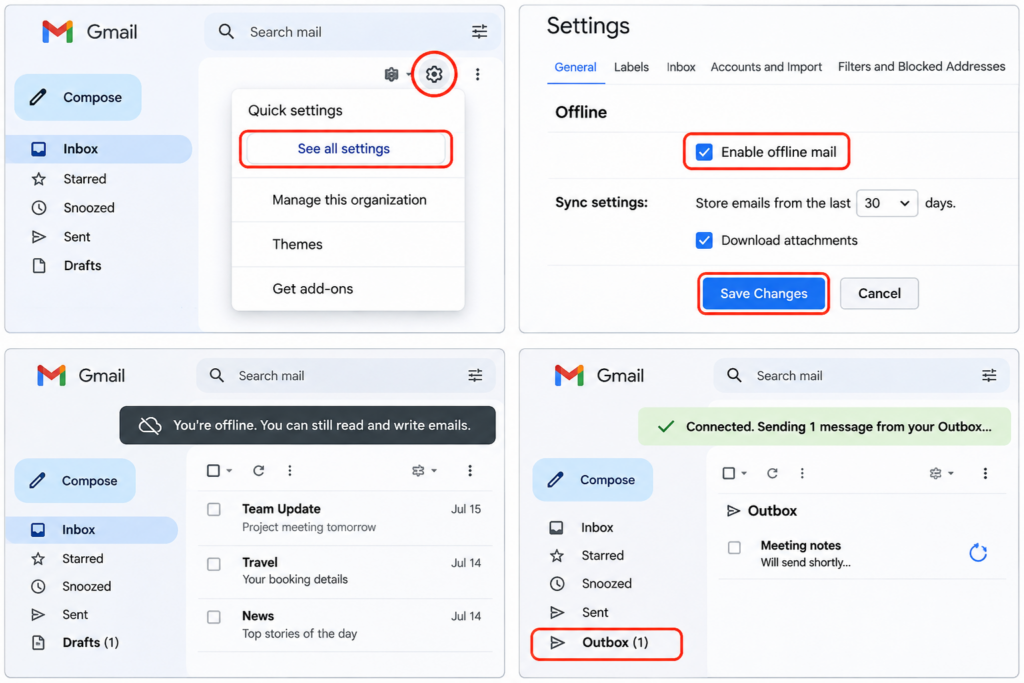
- Open Gmail in Google Chrome and sign in to the account you want to use offline.
- Select the Settings gear in the upper-right corner.
- Choose See all settings.
- Open the Offline tab.
- Tick Enable offline mail.
- Under the sync settings, choose how many days of messages to store on the computer. A shorter period uses less local storage.
- Select Save Changes.
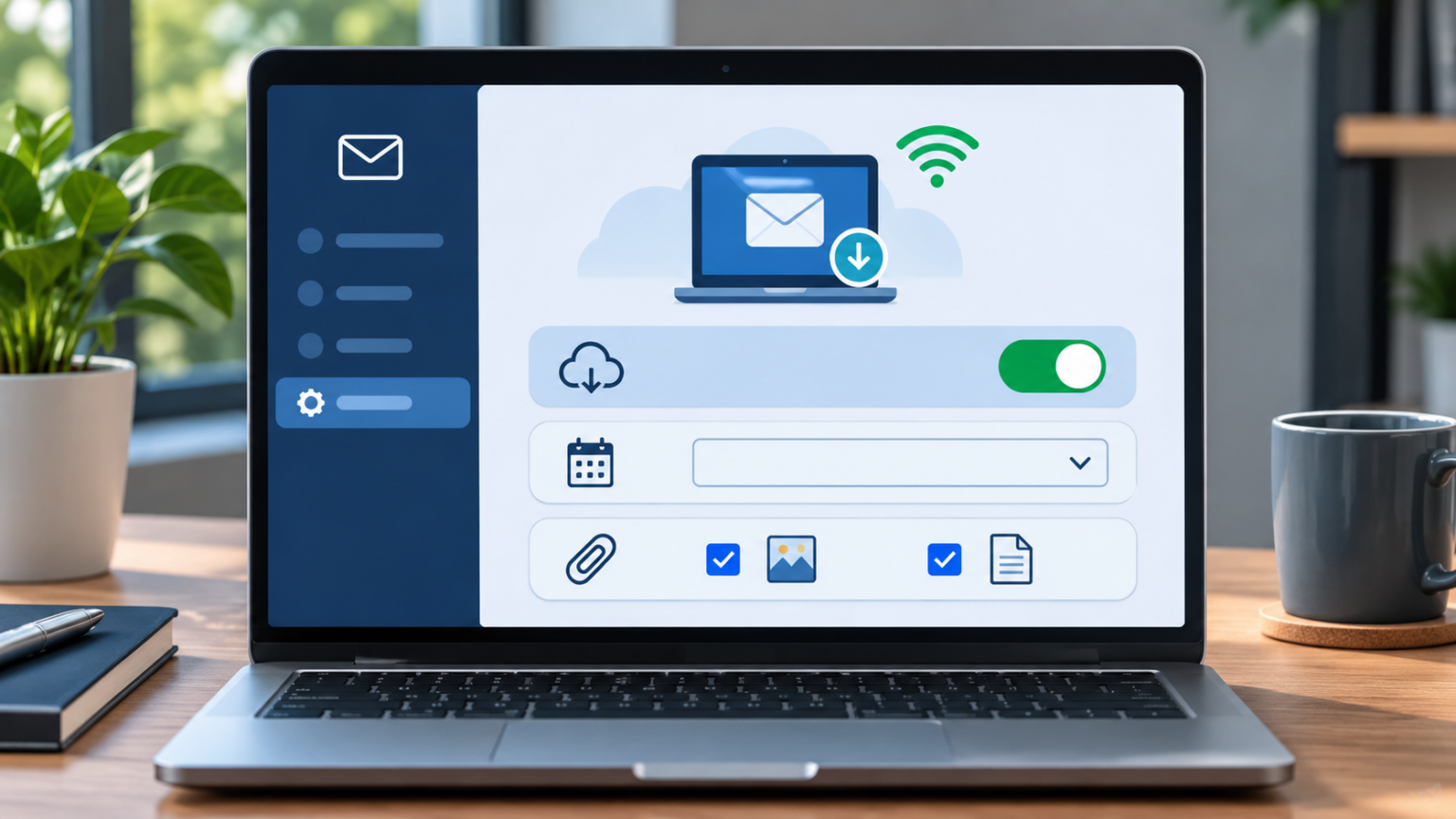
Leave Chrome open and keep the computer connected while Gmail prepares the offline copy. Google notes that messages sync only while Chrome is open. The first sync can take time if you choose a longer message history or include many attachments.
Bookmark Gmail so you can open it without internet
After enabling Offline mode, bookmark Gmail in Chrome. Open Gmail, select the star-shaped bookmark control at the right of the address bar, and save the bookmark. When your connection drops, open Chrome and use that bookmark to return to your inbox.
Do not rely on a bookmark alone: the offline feature must already be enabled and the messages must have finished syncing. Opening Gmail for the first time after going offline will not download mail that was never saved to the browser.
What you can do when Gmail is offline
When the computer has no internet connection, open Chrome and go to Gmail. You can read the messages that were synced, search that saved mail and write replies. You can also download an attachment that is available in the offline copy and open it with an application on your computer. Gmail cannot preview attachments while offline.
Messages you send without a connection are placed in a separate Outbox folder. They are not delivered immediately. Once the computer reconnects to the internet, Gmail sends them automatically. If a message is still in the Outbox, check the connection before trying to send it again so you do not create a duplicate.
Offline mode is not a replacement for a full email backup. It is a browser-based working copy for a limited number of recent messages, and it is available only on the computer and Chrome profile where you enabled it.
Important limits to understand
- Chrome only: Google’s documented Gmail Offline feature works in a Chrome browser window, not an Incognito window.
- One account at a time during setup: Gmail Offline uses the account that was signed in when you enabled it. To prepare another account, switch to that account and repeat the setup.
- Local storage: Gmail uses only the storage quota available to the browser, which can be much smaller than the free space shown by Windows or macOS.
- Browser data matters: Clearing site data or using a setting that deletes Google site data when Chrome closes can remove the offline copy.
- It is device-specific: You must enable it separately on every computer where you need offline access.
Offline storage is different from the way POP3 and IMAP handle email. Gmail Offline keeps a browser copy for temporary access; it does not change your account’s mail protocol or turn the browser cache into a permanent archive.
How to fix Gmail Offline when it is not working
Gmail says there is not enough offline storage
Return to Settings > See all settings > Offline and reduce the number of days to sync. Also check that the computer has free disk space. Gmail’s offline storage allowance is limited by the browser and may be lower than the computer’s total available storage.
Messages are not finishing their sync
Keep Chrome open while the computer is online. If the sync is large, leave Gmail open until it finishes. Reduce the sync period if it repeatedly runs out of space. Avoid clearing Chrome’s site data during this process because doing so can remove the messages already stored for offline use.
Gmail stops working after Chrome closes
Check Chrome’s site-data settings. Type chrome://settings/content/siteData in the address bar and look for the option that automatically deletes site data when Chrome closes. Make sure mail.google.com or *.google.com is not set to be deleted automatically. Also confirm that you are not opening Gmail in Incognito or Guest mode.
The Offline tab is missing
Confirm that you are using Gmail in Chrome on a computer, not the mobile Gmail app or a phone browser. For a work or school account, a Google Workspace administrator can control Gmail web offline access in the Admin console. If the Offline tab is missing, ask the administrator to check the Gmail Offline settings for Google Workspace.
If this article helped you, please consider supporting our work. Every small contribution keeps Abijita.com independent and running.

Turn off Gmail Offline when you no longer need it
To fully turn off Gmail Offline and remove its local copy, follow Google’s two-step process. First, in Chrome open Settings > Privacy and security > Third-party cookies > See all site data and permissions, then use the data-removal control described in Google’s help instructions. Next, return to Gmail’s Offline settings and clear Enable offline mail. Google warns that deleting cookies can sign you out of websites and remove saved preferences, so read the confirmation carefully before proceeding.
With Offline mode enabled in advance, Gmail can keep a limited set of messages available on a laptop during a temporary outage. Check the sync period and local storage before travelling or working somewhere with an unreliable connection.