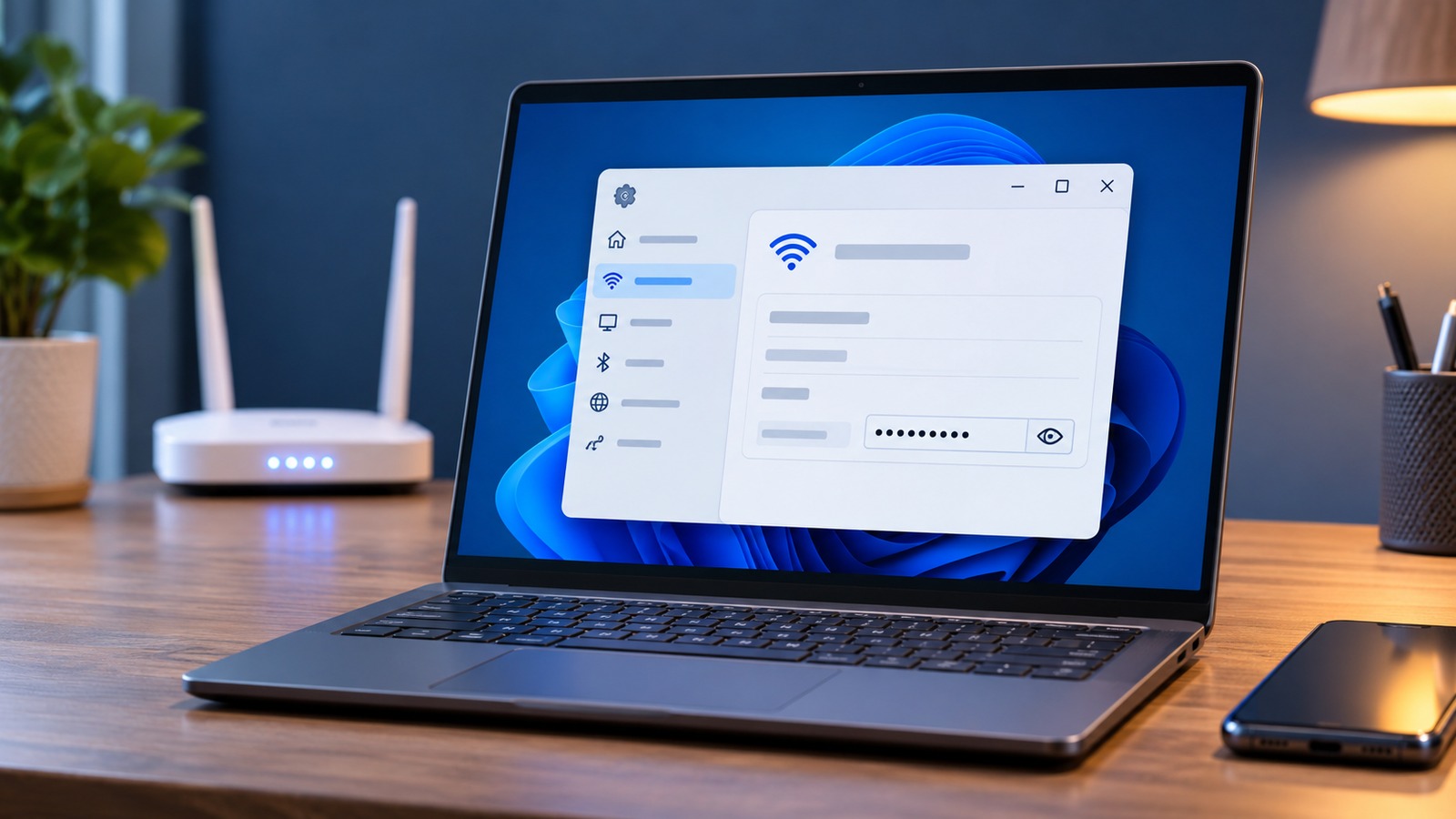


If you need to connect a new phone, tablet or laptop to your home Wi-Fi, you do not have to reset the router just because you cannot remember the password. Windows 11 can display the password for a wireless network your PC has already joined. You can find it for the network you are using now or for a network saved earlier, even when the PC is no longer connected to it.
The steps below use Windows’ built-in tools, so you do not need to install a password recovery app. Only reveal a password for a network you own or are authorised to manage. Anyone who has the network name and password may be able to join that Wi-Fi network.
Find the password for the Wi-Fi network you are using
If your Windows 11 PC is currently connected to the network, you can open its Wi-Fi properties from Settings or Quick Settings.
- Open Settings by pressing Windows + I.
- Select Network & internet from the left side.
- Open Properties for the connected Wi-Fi network.
- Find Wi-Fi network password and select Show.
- Windows displays the saved network password. You can read it and enter it on another device.
On current Windows 11 builds, you can also click the network icon on the taskbar, open the Wi-Fi connections list, and select the Properties icon beside the connected network. This opens the same password page without going through the main Settings window.
Microsoft documents the current Quick Settings route and the saved-network option in its Windows update notes, alongside its Wi-Fi connection guide. The exact layout can vary slightly between Windows 11 builds.
Find a password for a Wi-Fi network you used before
You can also view a password stored for a network that is not currently connected. This is useful when you are at home but want to retrieve the details of a workplace, school or another trusted network you previously joined.
- Open Settings and go to Network & internet.
- Select Wi-Fi.
- Open Manage known networks.
- Choose the network whose password you need.
- Next to Wi-Fi network password, select Show.
Windows can only show a password if the wireless profile is still saved on that PC. If you previously selected Forget for the network, or removed its profile, it will not appear in this list.
Use Command Prompt to view a saved Wi-Fi password


Windows also includes the netsh wlan command-line tool. Its documented export option can save a wireless profile as an XML file. If you include key=clear and run the command with local administrator rights, the saved security key is written into that file in plain text.
- Open Start and search for Command Prompt or Windows Terminal.
- Open it as administrator on a PC you own or are authorised to manage. This is important because Windows otherwise keeps the exported key encrypted.
- List the wireless profiles saved on the computer:
netsh wlan show profilesFind the exact profile name in the output. Create a local folder for the export if it does not already exist:
mkdir C:\WiFiProfilesReplace NetworkName with the profile name exactly as Windows lists it, then export the profile:
netsh wlan export profile name="NetworkName" folder="C:\WiFiProfiles" key=clearOpen the XML file created in C:\WiFiProfiles with Notepad and find <keyMaterial>. The value between that tag and its closing tag is the saved Wi-Fi password. The file name includes the wireless interface and profile name, so it may not match the network name exactly.
Protect the exported file. It contains the Wi-Fi password in readable text. Do not upload it, email it, or leave it in a shared or cloud-synced folder. After copying the password, delete the exported XML file and remove the temporary folder. Microsoft’s netsh wlan reference documents the export syntax and explains that only a local administrator gets the key in plain text when key=clear is used.
What if Windows does not show the password?
A missing password option does not always mean Windows has lost the network details. Check these points before changing router settings:
- Make sure you selected a Wi-Fi profile. The password option is not available for an Ethernet connection. Open the Wi-Fi section or Manage known networks instead.
- Check that the profile still exists. Windows cannot retrieve a password for a network you have never joined or one you removed with Forget.
- Try the other built-in method. If the Settings page does not show the password, check the saved profile with
netsh wlan show profilesand the command above. - Consider a work or school network. Some managed networks use individual sign-ins or certificates instead of one shared Wi-Fi password. Your organisation’s administrator may also restrict access to saved credentials.
- Remember that a saved password can be old. If someone changed the router’s Wi-Fi password after your PC connected, the stored key may no longer work. Ask the network administrator for the current password rather than repeatedly trying the old one.
Share the password without exposing your network
Once you have found the password, enter it directly on the device you want to connect. If Windows offers a Wi-Fi QR code on the network details screen, you can use it with a device that supports scanning Wi-Fi codes. Avoid sending the password in a public group or posting a screenshot where other people can read it.
If this article helped you, please consider supporting our work. Every small contribution keeps Abijita.com independent and running.

For visitors, a separate guest network is often safer than sharing the password used by your personal computers, smart devices and storage equipment. If you manage the router, review its security settings and use a strong, unique Wi-Fi passphrase. The steps in securing a home Wi-Fi router can help you protect the network after sharing access.
When you finish, close the Settings page or terminal and avoid leaving the password visible. Windows’ built-in options are enough to retrieve a saved key; you do not need a third-party utility to reveal a password already stored on your own PC.