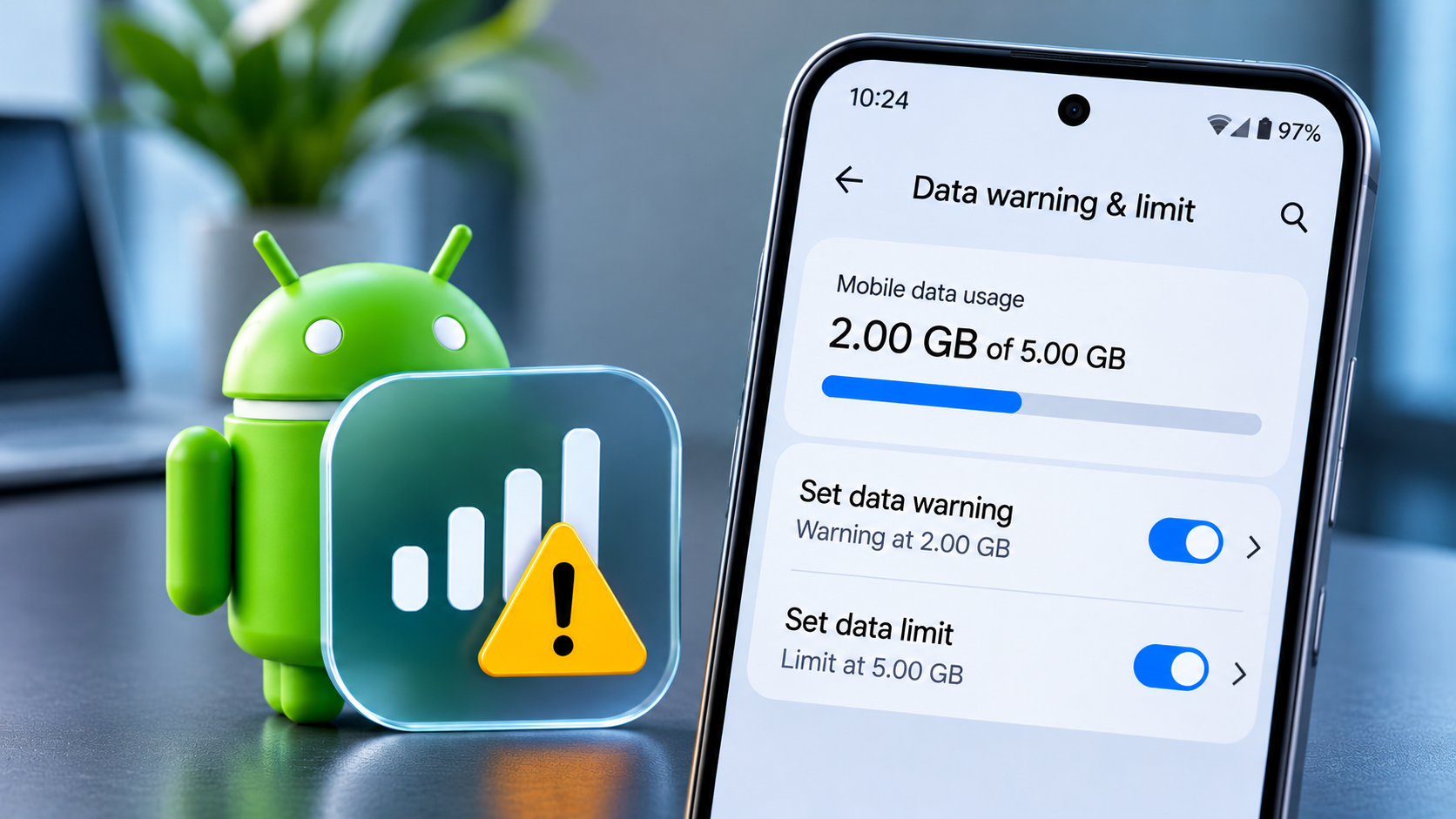



If your mobile data runs out before your plan renews, Android can warn you when you are getting close to your allowance. On supported phones, you can also set a data limit that automatically switches mobile data off when the phone reaches the amount you choose. The two settings work differently, so it is worth setting them up carefully.
This guide shows you where to find the controls on Google Pixel, Samsung Galaxy and other Android phones, how to match them to your billing cycle, and what to check if the usage shown on your phone does not match your carrier’s app.
Data warning vs. data limit: What is the difference?
A data warning sends a notification after your phone records the amount you set. It does not stop mobile data, so apps can continue connecting after the warning appears.
A data limit is stricter. When the phone reaches the amount you set, Android can automatically turn off mobile data for that SIM. You can turn it back on or change the limit, but apps that need a mobile connection will stop working until data is available again.
Neither setting counts Wi-Fi usage as mobile data. They also do not change the data allowance or billing rules set by your mobile carrier. Treat the phone’s counter as a useful monitor, and use your carrier’s app or account page to confirm the amount you have actually used.
Before you start: Check your plan and billing date
Find out how much mobile data your plan includes and the date your allowance renews. Some plans reset on the first day of each month, while others renew on the day you activated the package. If the cycle date on your phone is wrong, its warning can arrive too early or too late.
For example, if you have a 10 GB monthly allowance, you might set a warning at 8 GB and a phone-side limit at 9 GB. That leaves a little room for differences between Android’s counter and the carrier’s measurement. Adjust the amounts to suit your plan rather than copying the example exactly.
How to set a mobile data warning and limit on Google Pixel
On current Pixel software, Google places the controls under the Internet settings for your mobile operator. The labels can vary slightly between Android versions.
- Open Settings.
- Tap Network and Internet, then Internet.
- Next to your mobile operator, tap the Settings icon.
- Tap Data warning and limit.
- To receive an alert, turn on Set data warning, tap Data warning, enter the amount and tap Set.
- To turn mobile data off automatically at a chosen amount, turn on Set data limit and confirm the on-screen message.
- Tap Data limit, enter the amount and tap Set.
Google says the phone displays a notification when the warning threshold is reached. When the data limit is reached, mobile data turns off; you can return to the same screen and switch off Set data limit to restore it. Some features and apps will not work while mobile data is disabled. See Google’s current Pixel mobile data instructions for the steps and dual-SIM details.
How to set a data warning and limit on Samsung Galaxy
Samsung places these controls under Data usage. The menu can vary by Galaxy model, software version and carrier, so do not worry if the wording on your phone is slightly different.
- Open Settings and tap Connections.
- Tap Data usage.
- Depending on your One UI version, open Billing cycle and data warning, or tap Mobile data usage and then the settings gear.
- Set Start billing cycle on to the day your carrier allowance renews.
- Turn on Set data warning and enter the amount that should trigger an alert.
- Turn on Set data limit or Limit mobile data usage, then enter the amount at which mobile data should be disabled.
On some Galaxy phones, Samsung uses the label Limit mobile data usage instead of Set data limit. If you cannot find the option, check that the phone has an active SIM or mobile connection. Samsung’s official Galaxy data-usage guide explains the available menus and notes that carrier and software differences can affect what appears.
Other Android phones: Find the setting in Network & internet
On Motorola and some other Android phones, the route may look like this:
Settings → Network & internet → Mobile network → choose your SIM → Data warning & limit.
Other Android versions may use Settings → Network & internet → Internet, followed by the settings icon beside your carrier’s name. Look for Data warning & limit there. If the labels do not match, open Settings and search for “data warning” or “data limit”. Motorola’s data-usage instructions show another common Android menu path.
Check which apps are using your mobile data
A warning tells you that usage has reached a threshold, but it does not explain which app used the data. Open your phone’s mobile data usage screen and review the app-by-app breakdown. Look at the date range as well as the total, because the list may be showing a different cycle from your carrier’s package.
Video streaming, app updates, cloud backups, navigation downloads and social media can use data quickly. Messaging apps can also download photos and videos in the background. If WhatsApp is one of the biggest users, you can change its media auto-download settings for mobile data without disabling downloads over Wi-Fi.
Android’s Data Saver is another option, but it is not the same as a data limit. Data Saver restricts background activity for many apps; some notifications or updates may be delayed until an app is opened. Use it when you want to reduce background usage, not as a replacement for a warning or cutoff.
What to do if your Android data warning is wrong
- Check the billing-cycle date. Make sure it matches the day your carrier package renews, not automatically the first day of the month.
- Check the selected SIM. On a dual-SIM phone, the counter and limit may apply to the SIM selected for mobile data. Confirm that the correct SIM is active for data.
- Compare the carrier’s usage figure. Android and mobile operators can measure usage differently. Use the carrier’s app or account portal for billing decisions and leave a buffer in the phone-side limit.
- Check whether a warning or a limit is enabled. A warning only sends an alert. A data limit can turn mobile data off, which may explain why apps suddenly stop connecting.
- Confirm that mobile data is available. Some menu options are hidden when there is no active SIM, no mobile network connection or the phone is using Wi-Fi only.
If you have a plan that renews weekly or every 28 days, check whether your phone’s cycle controls can represent that schedule accurately. If not, use the carrier’s own usage tracker for the authoritative renewal and allowance information, and treat Android’s warning as an additional reminder.
Frequently asked questions
Does a data warning turn off mobile data?
No. A warning sends a notification when the phone reaches the amount you entered. Mobile data continues to work unless you also enable a data limit or turn it off manually.
Will Android’s data limit stop Wi-Fi?
No. The limit controls mobile data for the selected SIM. Wi-Fi connections can continue to work, although apps that need the mobile network will wait until mobile data is available again.
Can I set a different limit for each SIM?
On phones that expose data controls per SIM, select the SIM you want to monitor before setting the warning or limit. Dual-SIM behaviour differs by model, so check which SIM is selected for mobile data.
If this article helped you, please consider supporting our work. Every small contribution keeps Abijita.com independent and running.

Why does my carrier show a different data amount?
Your phone and carrier may calculate usage differently or update their counters at different times. Use the carrier’s figure to check your remaining allowance and avoid setting the phone limit right at the plan’s maximum.