



A file can be sitting right where you saved it and still refuse to open. A Word document may report unreadable content, a video may freeze on its first frame, or a ZIP archive may fail an integrity check even though the download appeared to finish normally. When the file is still present but its internal structure is damaged, file-repair software may be able to rebuild enough of it to make the contents readable again.
The important distinction is that file repair is not the same as data recovery. Repair tools work on files that exist but are damaged. Recovery tools are designed to find files that have been deleted, lost after formatting, or made inaccessible by a damaged partition or storage device. Choosing the wrong kind of software can waste time, and no repair product can guarantee that every damaged file will be restored.
This comparison looks at the repair categories, supported platforms and features published by the software vendors. It is not a laboratory benchmark or a claim that every product has been tested against the same damaged files. Most of the broad desktop suites are paid products, while the list also includes specialist tools for video and ZIP archives.
Best file repair software at a glance
| Software | Main use | Windows | Mac | Pricing |
|---|---|---|---|---|
| Wondershare Repairit | Videos, photos, documents, audio and archives | Yes | Yes | Paid; trial available |
| EaseUS Fixo | Videos, photos, documents and audio | Yes | Yes | Paid; trial available |
| Stellar Toolkit for File Repair | Word, Excel, PowerPoint and PDF | Yes | No Mac edition listed in its technical requirements | Paid; preview trial |
| Remo Video Repair | Damaged and unplayable videos | Yes | Yes | Paid; preview available |
| Kernel Video Repair | Damaged and unplayable videos | Yes | No Mac edition verified | Commercial product |
| DiskInternals ZIP Repair | Damaged ZIP archives | Yes | No | Free |
For a general-purpose tool, start by comparing Repairit and Fixo. Both cover several file categories and offer Windows and Mac versions. The other products are more specialised: Stellar concentrates on Office and PDF documents, Remo and Kernel focus on video, and DiskInternals is a free Windows utility for ZIP archives.
1. Wondershare Repairit
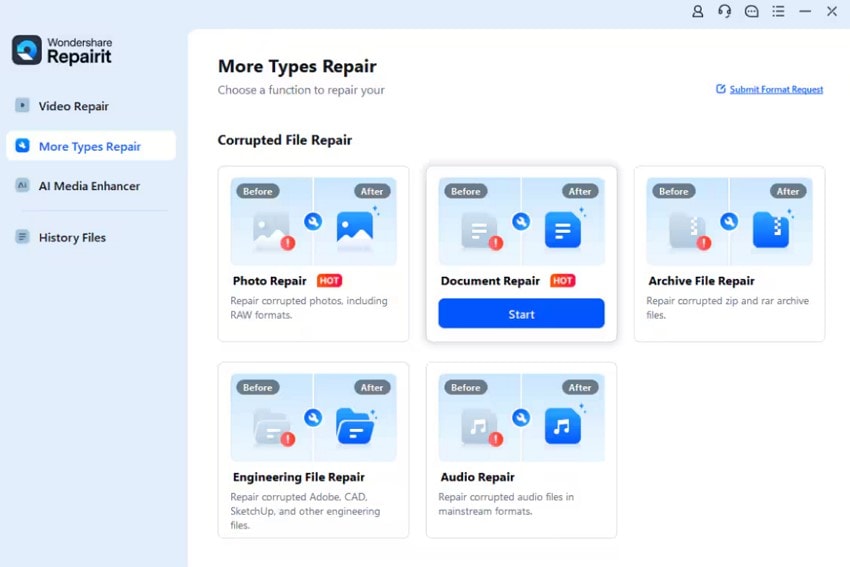
Wondershare Repairit has the broadest range of repair categories in this roundup. Its desktop application separates video, photo, file and audio repair into individual modules, giving users one place to start when the damaged file could be a recording, photograph, document or archive.
The vendor’s technical specifications list support for common video formats such as MP4, MOV, AVI and MKV, alongside camera and professional formats. Its photo-repair list includes JPEG, PNG, HEIC and a range of RAW formats. The file-repair category extends to Office documents, PDFs, ZIP and RAR archives, and several design and project file types. Repairit offers desktop versions for both Windows and macOS.
That breadth makes Repairit a sensible first option for people who regularly handle different kinds of media or documents. It is also useful when several files from one device or transfer have become unreadable. The trade-off is that a large feature list does not mean every file extension or every kind of corruption can be repaired; check the supported-format page for the exact file you have.
Repairit also promotes online repair and AI enhancement features. Those are separate workflows from repairing a damaged original, so choose the repair module that matches the problem rather than assuming an enhancement function will fix a file that cannot be opened.
Best fit: Windows and Mac users who want one paid application covering several file categories.
2. EaseUS Fixo
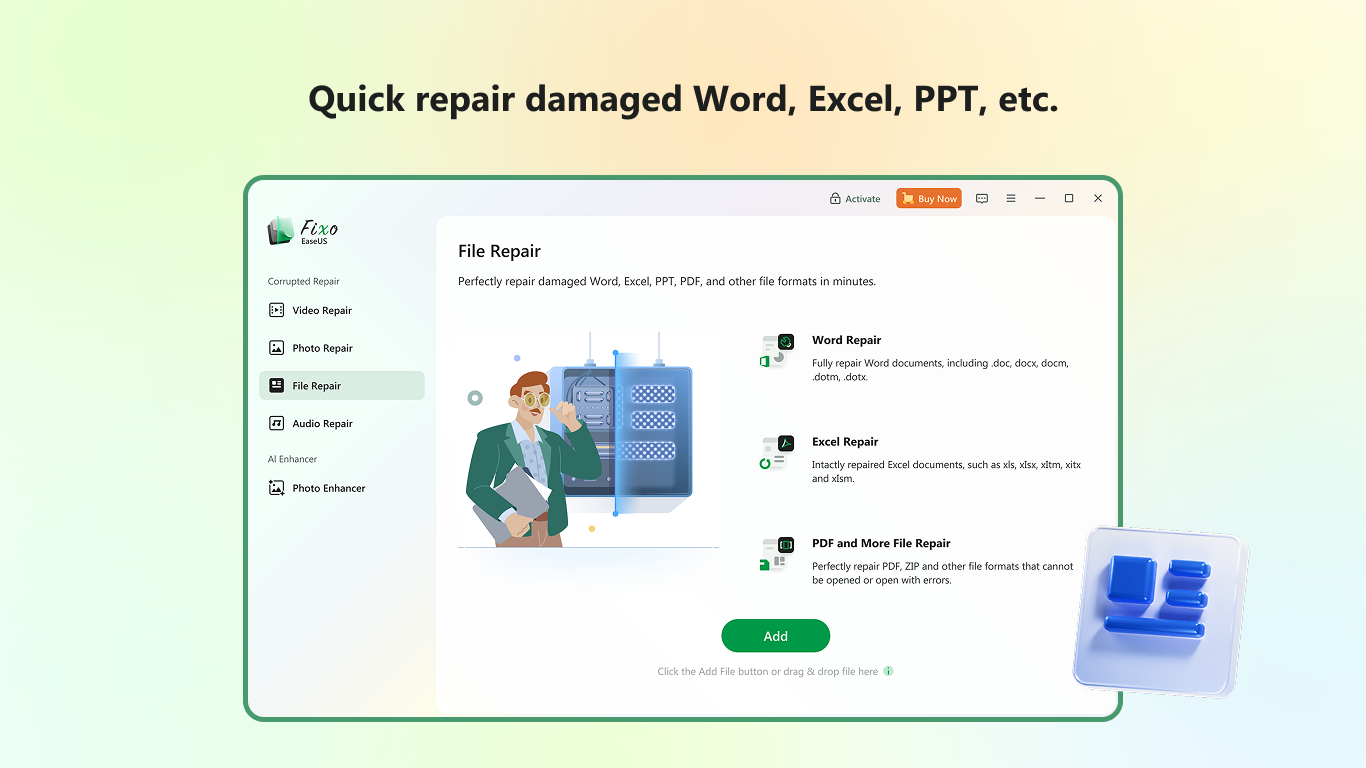
EaseUS Fixo is another broad repair suite, with separate options for damaged videos, photos, audio and documents. Its document repair feature covers formats such as Word, Excel, PowerPoint and PDF, while the video and photo modules are intended for files that will not open, preview correctly or play as expected.
Fixo is available for Windows and Mac. EaseUS lists Windows 7 through Windows 11 for its Windows edition and macOS 11 or later for its Mac edition. Its support guide also describes batch repair, which is useful when more than one file needs attention.
One detail worth knowing before installing it is how the trial works. EaseUS says the trial can process damaged videos, photos, files and audio, but prompts users to upgrade when they try to save the repaired output. That gives you a way to check whether the application recognises the file, although you may need a licence to export the result.
Fixo is a strong alternative to Repairit for users who want a multi-format desktop tool. The better choice will depend on the exact file extension, the type of damage and the repair limits attached to the edition you plan to buy.
Best fit: Users who need one Windows or Mac application for common document, photo, audio and video problems.
3. Stellar Toolkit for File Repair
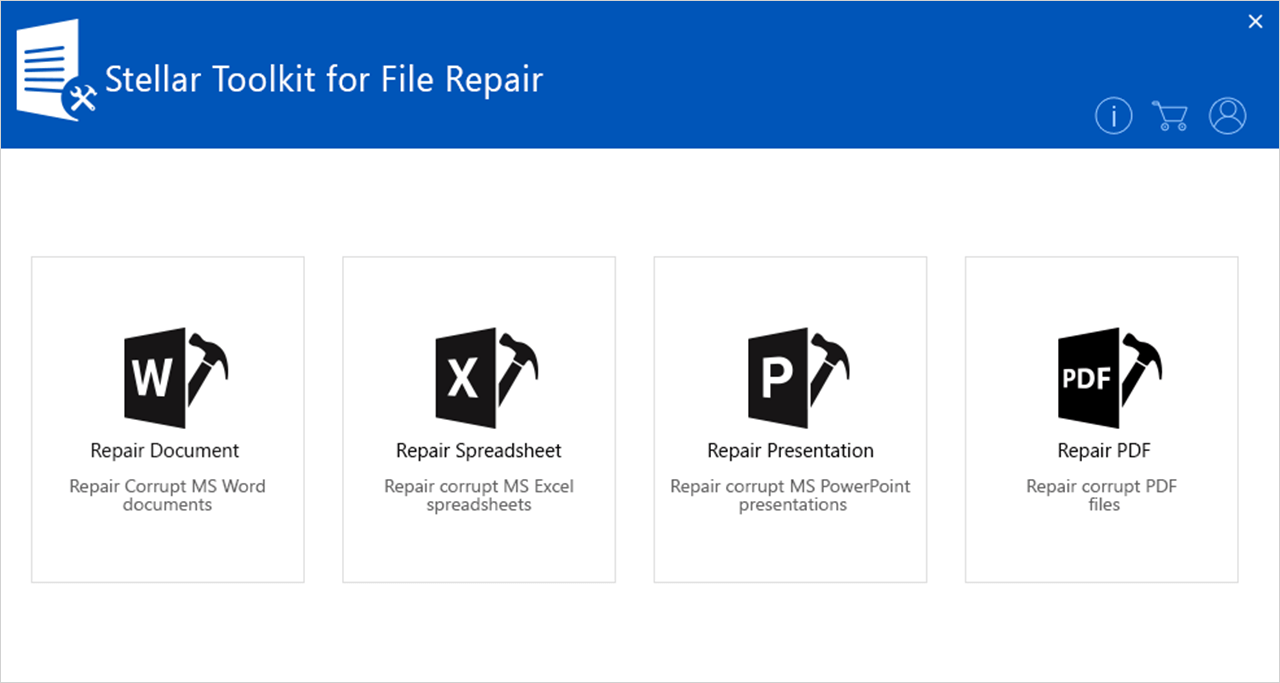
Stellar Toolkit for File Repair takes a more focused approach. Rather than trying to cover every media type, the toolkit concentrates on Microsoft Office documents and PDFs, with dedicated repair components for Word, Excel, PowerPoint and PDF files.
That focus may appeal to office users dealing with a damaged spreadsheet, an unreadable presentation or a Word document that no longer opens correctly. Stellar describes options for processing multiple files and previewing repaired content before saving it. Its Excel tool is designed to retain elements such as tables, formulas, charts and worksheet formatting, while the Word and PowerPoint components aim to preserve document structure and presentation elements.
There is an important platform limitation: Stellar’s technical requirements for this particular toolkit list 64-bit Windows 11, Windows 10, Windows 8.1 and Windows 8. Do not assume that another Stellar product’s Mac support applies to this toolkit. Check the product-specific requirements before purchasing.
The trial can be used to scan and preview recoverable items, while saving repaired files requires the appropriate licence. For users whose main concern is Office and PDF files, that specialised focus is more relevant than a suite with dozens of unrelated repair modules.
Best fit: Windows users working with damaged Word, Excel, PowerPoint or PDF files.
4. Remo Video Repair
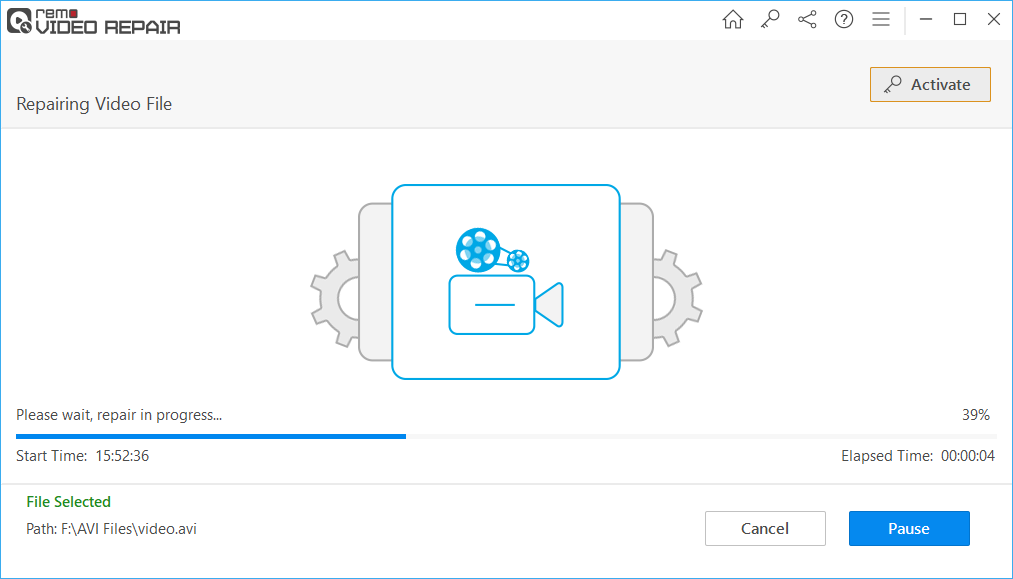
Remo Video Repair is aimed at people whose main problem is damaged video footage. It supports common formats including MP4, MOV and AVI, and the vendor says it is designed to address playback problems such as videos that will not open, stutter, display a black screen or play without sound.
Remo offers Windows and Mac versions and promotes support for video captured on cameras, camcorders, drones, CCTV systems and phones. Its product information also describes a read-only repair process and an option to preview the result before saving, which can help users judge whether the recovered footage is usable.
This is not an all-purpose file-repair suite. It is a more appropriate candidate when the affected item is a video and the problem is related to playback or corruption. Users with damaged documents, photos or ZIP files will need a different product.
Best fit: Windows and Mac users who need a dedicated tool for corrupted or unplayable video files.
5. Kernel Video Repair
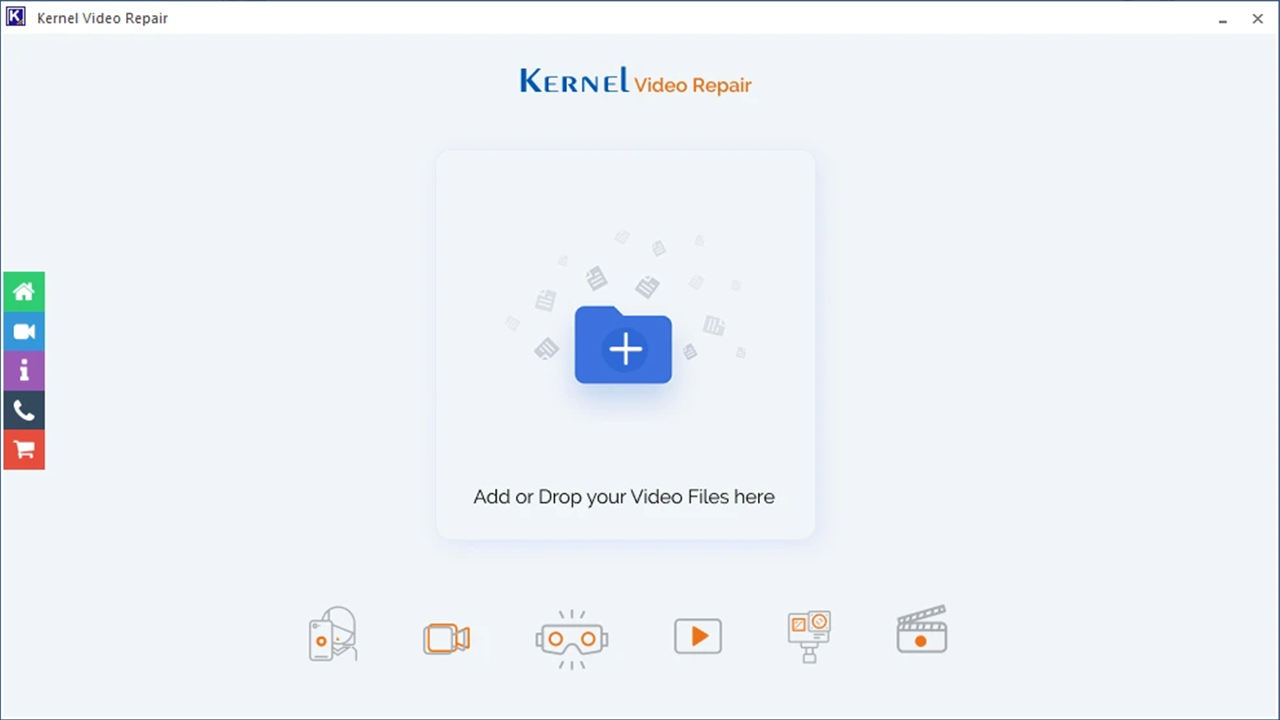
Kernel Video Repair is another specialist option for damaged footage. Its product listing describes support for formats including MP4, MOV, AVI, MPEG, MKV, M2TS and 3GP, along with repair functions aimed at video headers, codecs and frames.
The tool is intended for problems such as a video that will not play, has no sound, shows a black screen or appears blurry or incomplete. Kernel also describes an advanced repair method that can use a healthy sample video when the damaged file is difficult to analyse. A reference file should be selected carefully: it needs to be a comparable recording, not simply any video stored on the computer.
The listing and installation material reviewed for this guide describe a Windows application. A Mac edition was not verified, so Mac users should look at one of the products that explicitly lists macOS support. As with any video-repair product, check the supported format and trial conditions before buying.
Best fit: Windows users whose problem is specifically a corrupted or unplayable video.
6. DiskInternals ZIP Repair
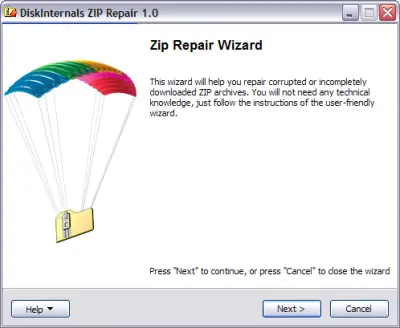
DiskInternals ZIP Repair is the free option in this list, but its scope is much narrower. It is designed to scan a damaged ZIP archive and move the intact files it can extract into a new archive. That can be useful when Windows or an archive utility reports that a ZIP file is invalid or cannot be opened.
DiskInternals describes the application as freeware and lists support for Windows, including Windows 11. Its wizard-based workflow keeps the job simple: select the damaged archive, let the tool scan it, and choose where to save the repaired archive or extracted contents.
It is not a replacement for a general document or video repair suite, and the vendor lists it as a Windows utility rather than a Mac application. It is worth considering when the problem is specifically a ZIP archive and a paid subscription would be unnecessary.
Best fit: Windows users who need a free utility for a damaged ZIP file.
Which file repair software should you choose?
For a mixture of damaged videos, photos, documents and audio, Wondershare Repairit and EaseUS Fixo are the two broadest choices here, with versions for both Windows and Mac. Repairit’s published format list is particularly extensive, while Fixo’s support documentation explains its document, video, photo and audio workflows and how its trial handles saving.
For Office files and PDFs on Windows, Stellar Toolkit is the more specialised option. For video-only problems, compare Remo and Kernel against the exact format and operating system you use. If the file is a ZIP archive and you want a no-cost Windows utility, DiskInternals ZIP Repair is the focused choice.
Mac users should pay close attention to platform support. Repairit and EaseUS Fixo both publish Mac versions, and Remo offers a Mac edition for video repair. Stellar Toolkit for File Repair and DiskInternals ZIP Repair list Windows requirements, while a Mac version of Kernel Video Repair was not confirmed in the documentation checked for this guide.
File repair software is not the same as data recovery
If a file still appears in Finder or File Explorer but cannot be opened, a repair tool may be appropriate. If the file has been deleted, a drive has been formatted, or an entire partition has disappeared, look at data-recovery software instead. If a hard drive is making unusual noises or a storage device is physically failing, stop using it and consider professional recovery before repeated scans or repair attempts make the situation worse.
For a damaged video where you would rather try a browser-based service, see our separate guide to online video repair services. Online tools may require you to upload the file, so consider its contents and the provider’s privacy terms before sending personal or business material.
If this article helped you, please consider supporting our work. Every small contribution keeps Abijita.com independent and running.

What to check before paying for a repair tool
Start with the file extension and the device or application that created it. A tool that repairs MP4 video will not necessarily handle a camera’s proprietary recording format, and a document-repair package may not support every version of an Office file. Check the vendor’s current format list and operating-system requirements rather than relying on a general claim that it repairs “all files.”
Next, read the trial terms carefully. Some products let you scan or preview a possible repair but require payment before saving the result. Others limit the size, number or duration of files that can be processed. A preview is useful, but it is not the same as confirming that the full repaired file can be exported and opened.
Keep an untouched copy of the original and save repaired output to a different folder or drive. If the repair process fails, you will still have the source file for another attempt. For sensitive documents, also check whether the software works locally or uploads files to an online service, and review the provider’s privacy terms before submitting confidential material.
Even a capable repair tool cannot reconstruct data that is missing or has been overwritten. The safest approach is to choose software built for the specific file type, confirm that it supports your operating system, and test the repair on a copy before replacing or deleting anything.