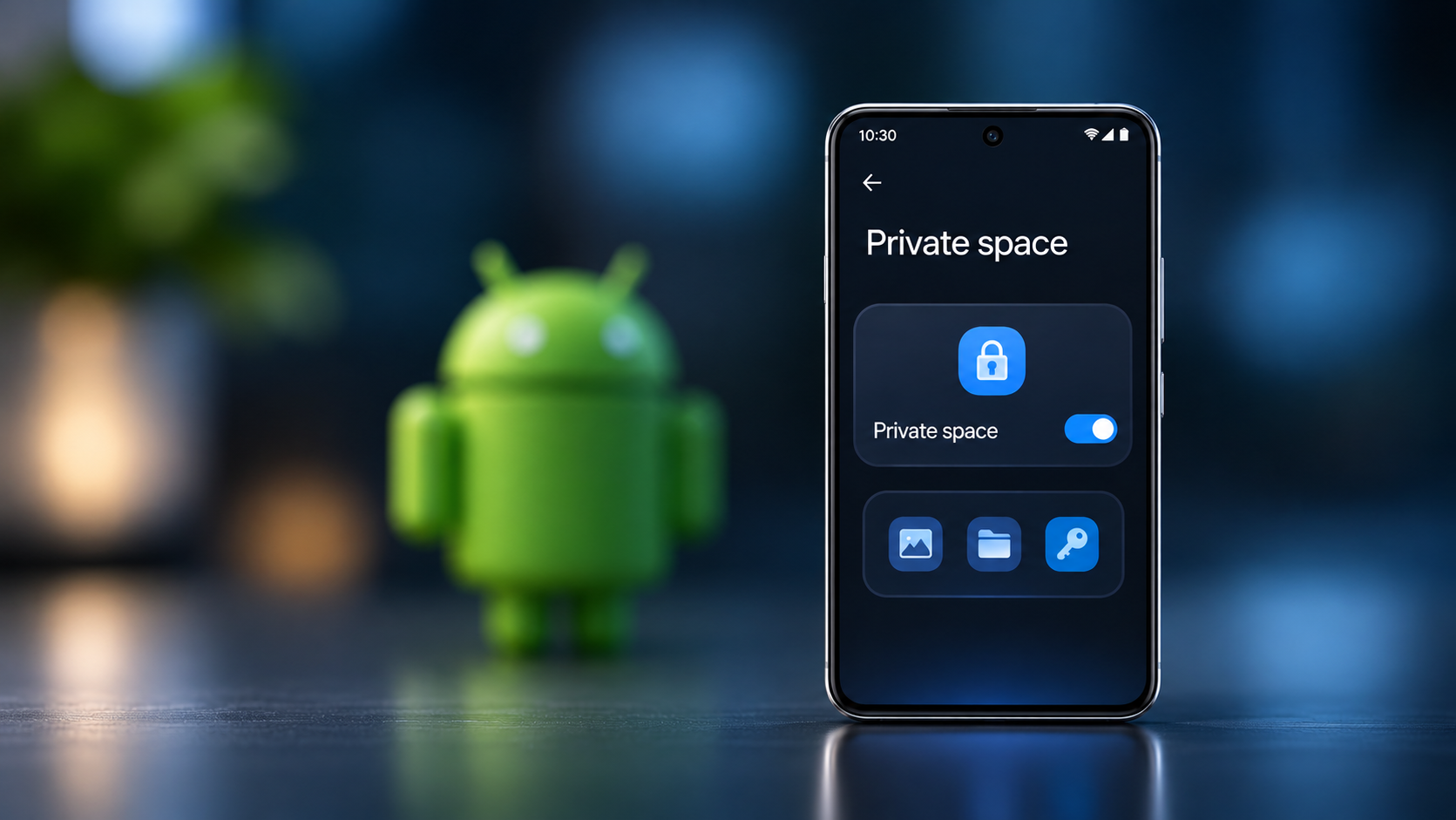



If you sometimes hand your phone to someone else, you may not want every app on it to be visible. Private Space on Android creates a separate, locked area where you can install another copy of an app and keep it out of your regular app list while the space is locked.
The feature is built into Android, but it is not available on every phone. This guide explains how to check compatibility, set it up, add apps, hide the space, and avoid losing important data.
What Private Space on Android does
Private Space works like a separate Android profile on the same phone. Apps installed inside it have their own app data and accounts. When you lock the space, its apps stop running and disappear from places such as the app drawer, Recents, notifications, and Settings. Android’s technical documentation explains how this separate profile works.
It is not simply an app-hiding switch. Private Space creates a separate installation, so the app in your normal profile and the copy inside Private Space do not share their local data.
Check whether your phone supports Private Space
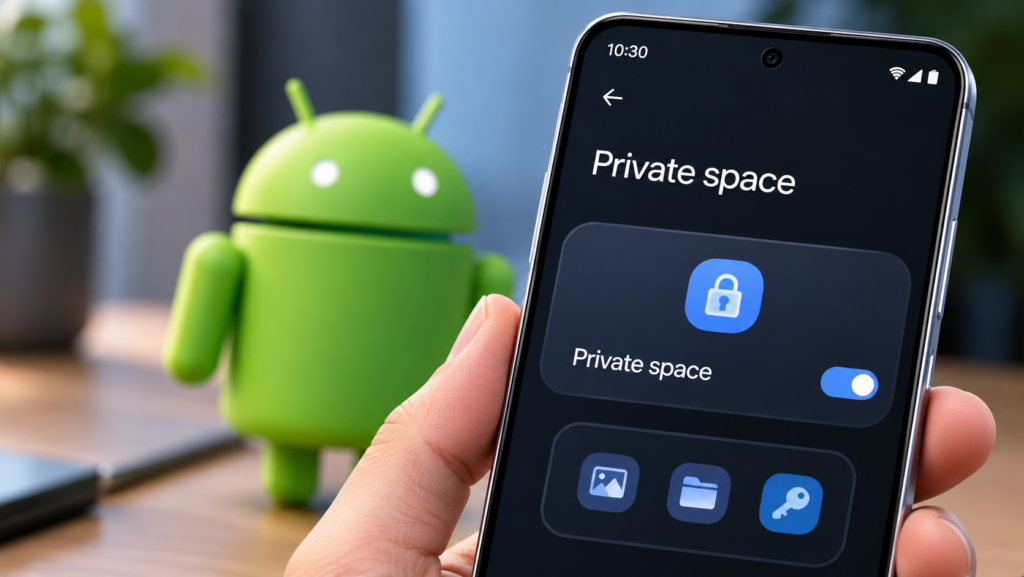
Google lists Android 15 or later as a requirement, but the Android version alone does not guarantee that the option will appear. A phone maker or workplace administrator can disable it, and some steps require supported hardware.
- Your phone must run Android 15 or newer.
- You must use the main device profile, not a guest or secondary user.
- The phone must not be managed by an organisation that disables Private Space.
- A supervised Google Account on the main profile or more than four users or profiles can prevent setup.
To check your version, open Settings, then About phone, and look for Android version. Menu wording can differ between manufacturers.
How to set up Android Private Space
On phones that use the standard Android interface, follow these steps:
- Open the phone’s Settings app.
- Tap Security & privacy.
- Under Privacy, tap Private space.
- Authenticate with your current screen lock. If you do not have one, Android will ask you to create it.
- Tap Set up, follow the introduction, and tap Got it when prompted.
- If offered, choose which Google Account to use inside the space. A separate account can help keep synced activity and data apart from your main profile.
- Choose the lock. Select Use device screen lock to keep the same lock, or Choose new lock to create a separate PIN, pattern, or password.
- Finish by tapping Done.
A separate lock is useful if other people know your phone’s normal PIN. Choose a code you do not use elsewhere. A different Google Account is optional, but it can reduce the chance that synced information from the private profile appears in your main profile.
How to add apps to Private Space
Open the app drawer (sometimes called All Apps) and scroll to the bottom to find Private space. Unlock it. You can install apps in either of these ways:
- From inside Private Space: Tap + Install, then use the Play Store or another available installer.
- From the main app list: Touch and hold an installed app and, if your phone offers it, choose Install app in Private space. Follow the installer instructions.
Android installs a new copy of the app. It does not move the original or copy its local data into Private Space. You will normally need to sign in again and set up the private copy separately. Keep the original app until you have checked that the new copy works and that you can access the information you need.
How to lock and hide Private Space
Locking the space hides its apps from the normal phone interface. Open the app drawer, find Private Space, and tap its Lock icon. To configure automatic locking:
- Open the app drawer and scroll to Private space.
- Unlock it, then tap the Settings icon beside the heading.
- Tap Lock private space automatically.
- Choose Every time device locks, 5 minutes after screen timeout, or Only after the device restarts, depending on the options shown.
You can also hide the Private Space entry itself. Open its settings, find the Hide section, and turn on Hide private space when it’s locked. The entry disappears the next time you lock the space. To find it again, search for “Private space” in the app drawer or open it through Settings.
This does not make the feature impossible to discover. Google notes that device logs, app installation activity, computer connections such as ADB, or other apps may still reveal that Private Space is being used. Treat it as everyday privacy protection, not an invisible vault against someone with advanced access to your phone.
Can you move photos and files into Private Space?
File handling depends on your Android release. Android’s AOSP documentation says the built-in Add files option is available on Android 16 QPR2 and later. On a supported phone, open Private Space, choose Add and then Add files, select the items, and choose whether to copy or move them.
Copying leaves the original in place. Moving removes the original after the transfer succeeds. Check the destination before deleting anything yourself. If your phone does not show Add files, the option may not be included in its Android build; it is not available on every Android 15 or Android 16 device.
Samsung Galaxy phones have a separate manufacturer-specific option called Secure Folder, with its own setup and file-management behavior.
Important limitations to understand
- Notifications stop while it is locked. Apps inside Private Space are stopped and cannot run background tasks or show alerts until you unlock it. Avoid putting apps there if you depend on their notifications or background activity.
- Private Space apps bypass your device VPN. Google lists this as a limitation, so apps inside the private profile do not use the VPN configured for the rest of the phone.
- App data stays separate. Installing an app privately does not transfer its data from the normal installation.
- Local data is not backed up with the device. Google says deleting Private Space deletes its apps and local data. Cloud-synced information may return when you sign in to the app again.
- Availability varies. Manufacturers and enterprise administrators can disable the feature, and launcher support can differ.
Before deleting or resetting Private Space, make sure important information is backed up through each app’s own supported cloud or export feature. Deleting the space removes its apps and local data; it is not a harmless way to hide the section temporarily.
Why Private Space is missing or will not open
If you cannot find the option, search for Private space in Settings. If it still does not appear, confirm that the phone runs Android 15 or later and that you are using the main device profile. A managed phone, a supervised account, a manufacturer restriction, or unsupported hardware may prevent it from appearing.
If the space is missing from the app drawer, check whether Hide private space when it’s locked is enabled. If you use a third-party launcher, switch temporarily to the phone’s default launcher to check whether it supports Android’s private profile.
For the exact requirements and current menu steps, read Google’s official Android Help guide to Private Space. Menu labels and availability can differ between manufacturers, so consult your phone maker’s documentation if its interface uses different names.
Frequently asked questions
Does Private Space work on every Android 15 phone?
No. Android 15 or later is required, but a manufacturer or administrator can disable it, and some devices need supported hardware.
Will my existing apps and their data move into Private Space?
No. Private Space installs a separate copy. Its data and sign-in are separate, so you must set it up again or use the app’s supported restore process.
If this article helped you, please consider supporting our work. Every small contribution keeps Abijita.com independent and running.

Will I receive notifications from private apps?
Not while Private Space is locked. Its apps are stopped and cannot run background tasks or display notifications until you unlock it.
Can I recover Private Space after deleting it?
Local app data is deleted with the space and is not restored from a normal device backup. Data that an app separately synced to its own cloud service may be recoverable after you sign in again.