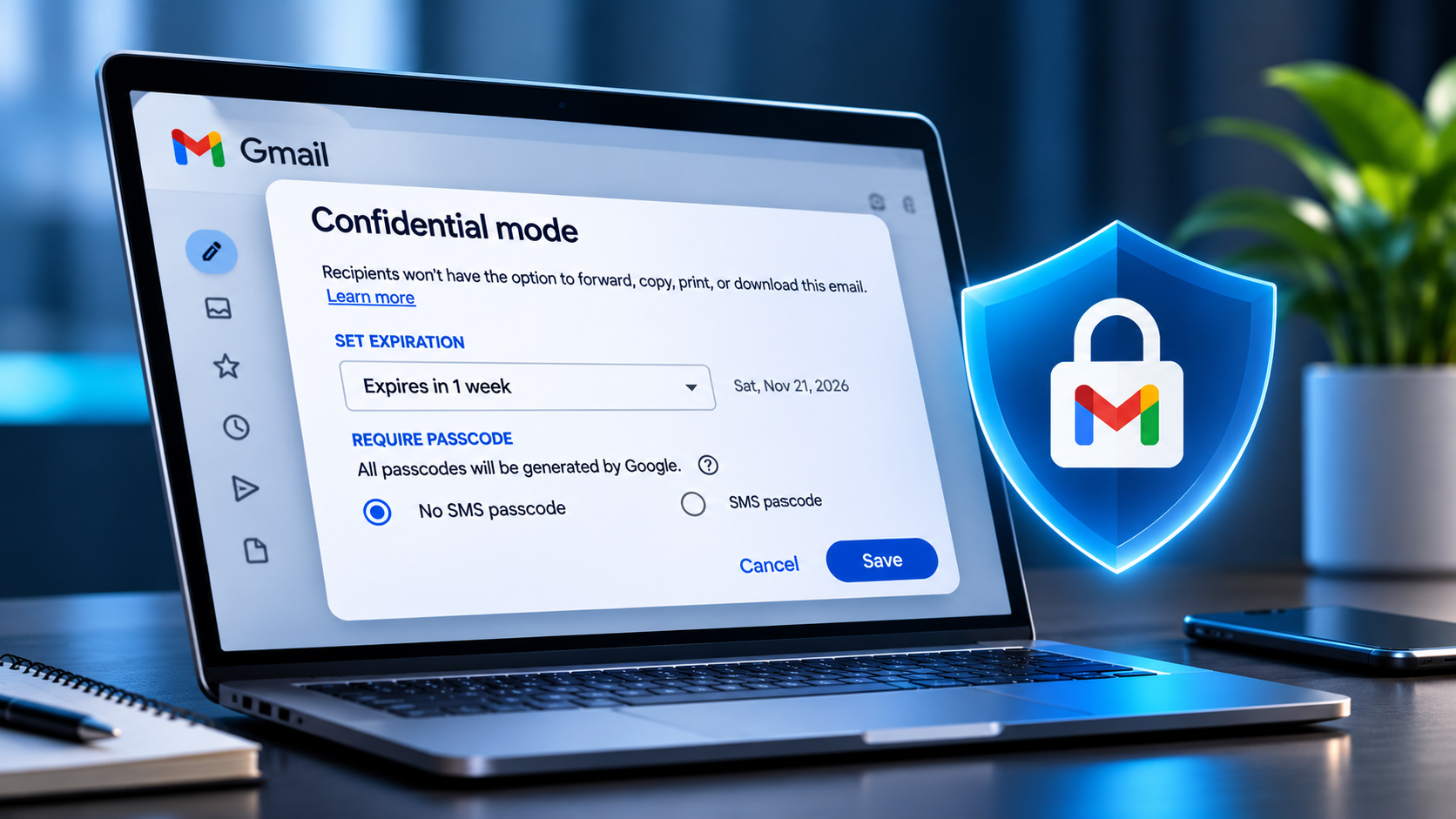



Sometimes an email contains information you do not want sitting in someone’s inbox forever. Gmail’s Confidential Mode gives you a few extra controls: you can set an expiry date, restrict options such as forwarding and downloading, and remove a recipient’s access before the message expires. You can use it from Gmail on a computer or from the Gmail app on Android and iPhone.
It is useful for sharing routine sensitive information, but it is not a guarantee that nobody can copy what you send. A recipient can still take a screenshot or photograph of the screen, and Google warns that malicious software may still copy or download message content.
What Gmail Confidential Mode does
When you turn on Confidential Mode, Gmail lets you choose how long the recipient can access the message. You can also disable the recipient’s normal options to forward, copy, print, or download the message and its attachments. If you change your mind, you can revoke access before the expiry date.
The expiry and passcode settings apply to both the message text and attachments. The controls are useful when you want to limit access, but they should not replace an approved encrypted file-sharing service for highly sensitive documents.
How to send a confidential email from a computer
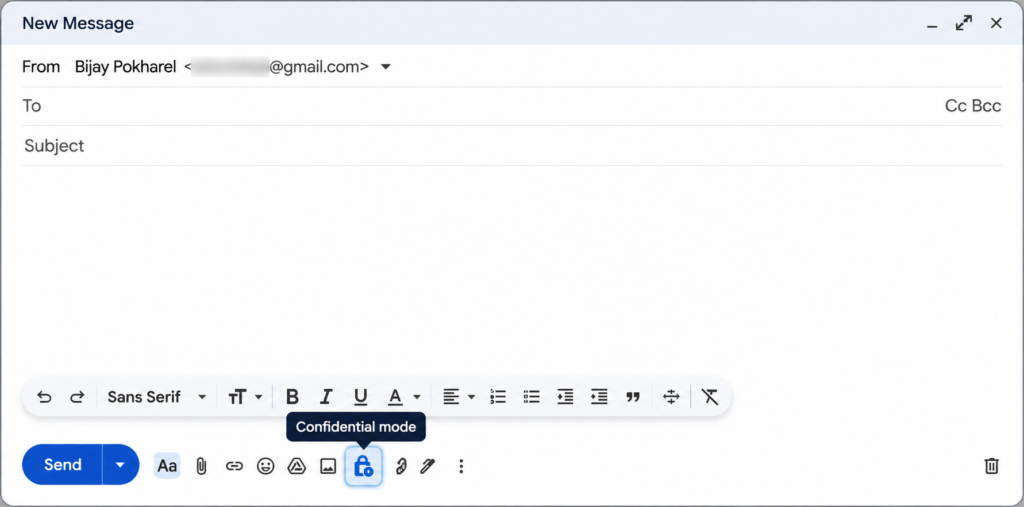
The desktop version of Gmail puts Confidential Mode inside the message composer. Follow these steps:
- Open Gmail in your browser and click Compose.
- Add the recipient, subject, and message as usual. You can add attachments if needed.
- At the bottom of the compose window, click the Toggle confidential mode icon. It looks like a small lock with a clock.
- Choose an expiry period from the drop-down menu.
- Choose how the recipient should open the email. Select No SMS passcode or SMS passcode, depending on the options available to you.
- Click Save, review the recipient and message, then click Send.
With the no-SMS option, recipients who use Gmail can open the message directly. A recipient who does not use Gmail receives an email with a passcode. With SMS passcode enabled, Gmail sends a code to the recipient’s phone number.
How to send a confidential email on Android or iPhone
You can also enable the feature in the Gmail mobile app. The steps are almost the same on Android and iOS:
- Open the Gmail app and tap Compose.
- Enter the recipient, subject, and message.
- Tap the three-dot More options menu in the top-right corner.
- Tap Confidential mode.
- Turn on Confidential Mode, then choose an expiry timeframe under Set expiration.
- Under Require passcode, choose Standard or SMS passcode, if offered.
- Tap Save, then send the email.
On mobile, Google calls the no-SMS option Standard. Gmail users can open the message directly, while recipients using another email provider receive a passcode by email. The SMS option sends a code to the recipient’s phone.
A note for users in Nepal: Google’s published list of regions that support SMS passcodes names North America, South America, Europe, Australia, and India, Korea, and Japan in Asia. Nepal is not listed. If you are sending to a Nepali number, do not assume SMS verification will be available; use Standard access unless Gmail confirms the SMS option works for that recipient.
How to revoke access to a confidential email
You do not have to wait for the expiry date if you no longer want someone to open a message. Gmail lets you remove access from the Sent folder.
- On a computer: Open Gmail, select Sent, open the confidential email, and click Remove access.
- On Android or iPhone: Open the Gmail app, tap the menu, choose Sent, open the confidential email, and tap Remove access at the bottom.
After you remove access, the recipient can no longer reopen the message through Gmail’s confidential link. This does not erase a screenshot, photograph, or anything the recipient has already copied outside Gmail.
What the recipient sees
A recipient can open the message and its attachments until the expiry date or until you remove access. Gmail disables the normal copy, paste, download, print, and forward controls for the message. If a passcode is required, the recipient follows the prompt and enters the code before viewing the content.
If the recipient uses another email service, they may need to select View the email and open it in a browser. If the message has expired or you have removed access, they will need to contact you to request a new message or more time.
Important limits to understand
- Screenshots are still possible. Confidential Mode cannot stop someone from photographing the screen with another device.
- Malware can bypass the convenience controls. Google warns that malicious software may still copy or download message content.
- It does not protect a compromised Gmail account. Use a strong, unique password and two-step verification. The Google Account security checklist explains how to review sign-in protection and recovery settings.
- SMS passcodes are region-dependent. The option may not be available for every recipient or phone number.
- Attachments are covered by the same access settings. A recipient may lose access to an attachment when the message expires or you revoke access.
If Confidential Mode is missing
If you cannot find the option, first make sure you are composing a new message in Gmail rather than in another email app. Update the Gmail app if you are using a phone. If you use a work or school Google account, your administrator may need to confirm that Confidential Mode is available for your account.
If this article helped you, please consider supporting our work. Every small contribution keeps Abijita.com independent and running.

For the current menu names and recipient instructions, check Google’s official Gmail Confidential Mode help page. The feature is best treated as a way to limit casual forwarding and keep access time-bound, not as a way to make an email impossible to capture.