


Need a document while travelling, working somewhere with weak mobile data, or waiting for an internet connection to return? You can prepare Google Drive files in advance so they remain accessible on your phone. The important part is choosing the right offline option: the Drive app can keep a file preview on your device, while Google Docs, Sheets and Slides have their own offline controls for editing.
Here is how to make individual files available offline on Android and iPhone, find them later, and avoid filling your phone with files you no longer need.
Before you save files for offline use
Connect to Wi-Fi or mobile data before starting. Open the Google account that has access to the files, and check that your phone has enough free storage. Offline access stores information on the device, so large PDFs, videos and other files can take up space.
Choose the files you are likely to need rather than trying to save your entire Drive. Google Drive is a cloud storage service, and marking selected files for offline use is not the same as syncing your whole account to the phone.
How to make Google Drive files available offline on Android
The Google Drive app lets you save individual files so you can open them when your phone has no connection.
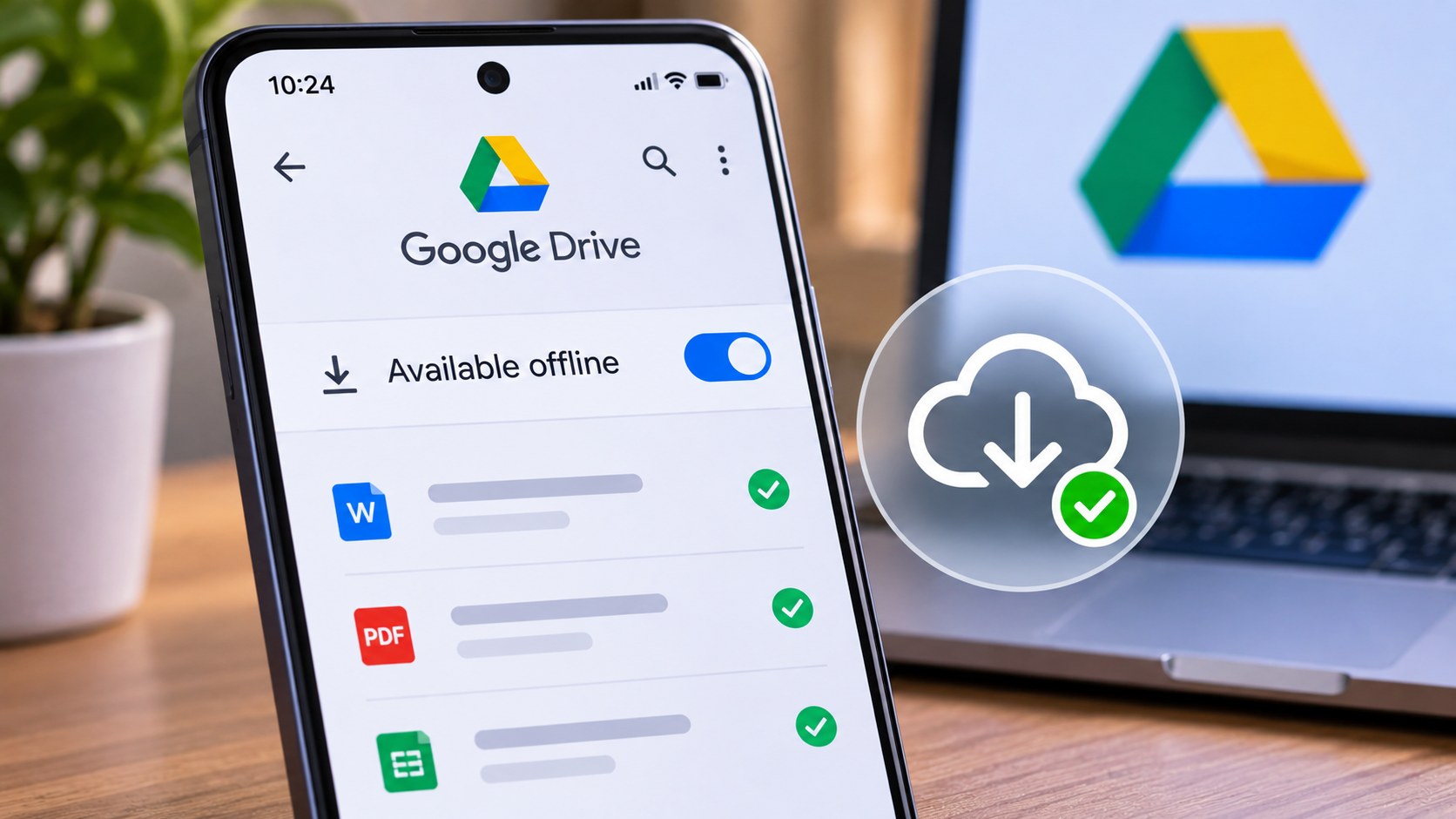
- Open the Google Drive app on your Android phone or tablet.
- Find the document, PDF, image or other file you want to keep available.
- Tap the three-dot More menu beside the file.
- Select Make available offline.
- Keep the phone connected until the app finishes preparing the file.
Google lists this option in its Android offline-access instructions. The setting applies to the selected file; it does not automatically make every item in the same folder available offline.
How to save Google Drive files offline on an iPhone or iPad
The process is similar on Apple devices, although Google describes the Drive app’s offline copy as a preview. If you need to edit a Google document without internet access, use the separate Docs, Sheets or Slides app as explained below.
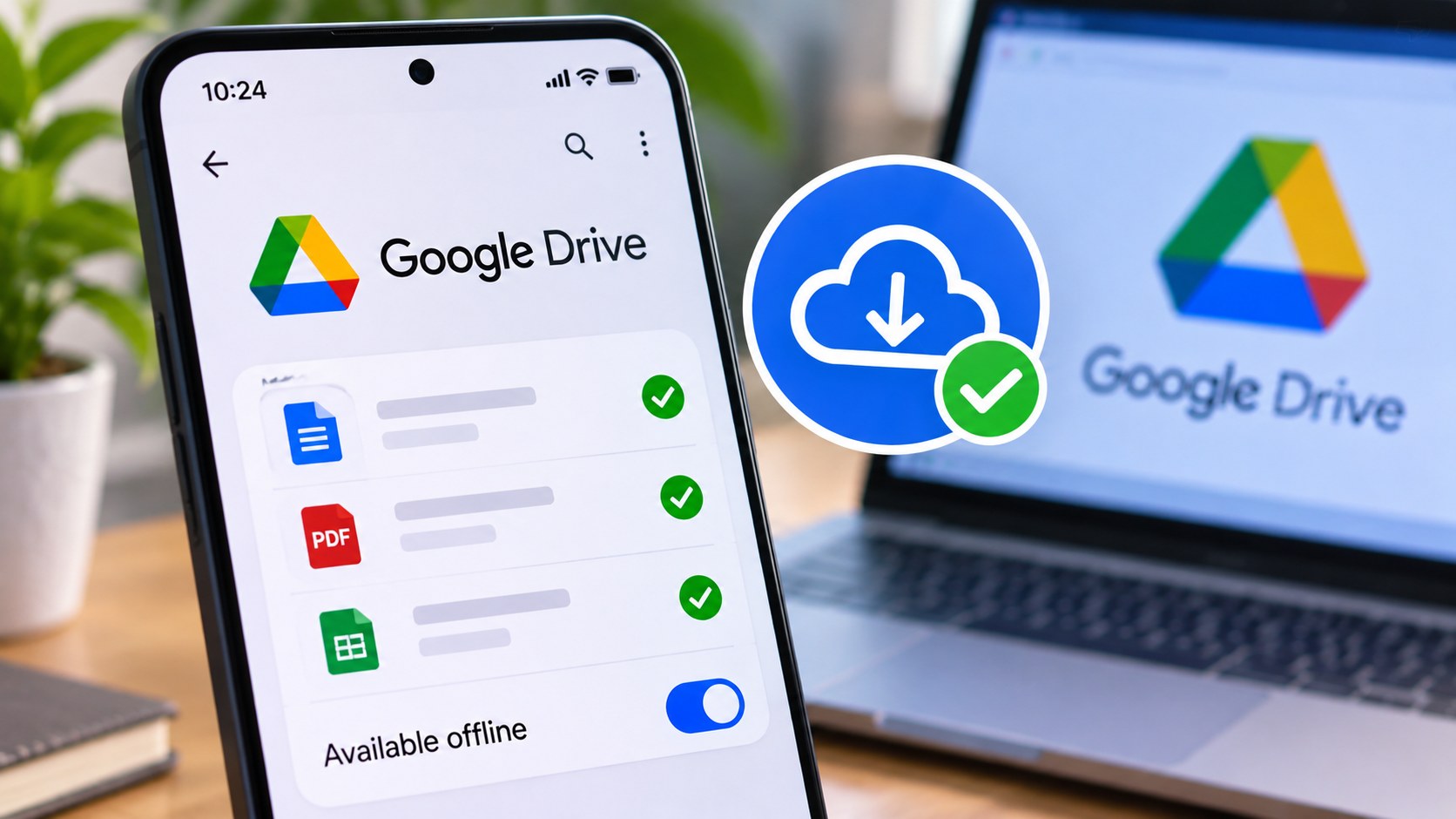
- Open the Google Drive app on your iPhone or iPad.
- Locate the file you want to access later.
- Tap the three-dot More button beside its name.
- Turn on Make available offline.
- Keep the app online until the offline preview has finished saving.
On iPhone and iPad, Google says this option saves a preview of the file for offline access. You can find the instructions in Google’s iPhone and iPad Drive guide. To edit a Google Doc, spreadsheet or presentation offline, open it in the matching Google editor app instead of relying only on the Drive preview.
Make Google Docs, Sheets and Slides editable offline
If you want to change a document while disconnected, prepare it in Google Docs, Sheets or Slides. You can save one specific file or enable offline access for recent files in each app.
Save one document, spreadsheet or presentation
- Open the Google Docs, Sheets or Slides app.
- Find the file you want to edit offline.
- Tap the three-dot More menu beside it.
- Choose Make available offline.
Repeat these steps in the relevant app for other files. A document saved in Docs does not mean every spreadsheet or presentation in your Drive has also been prepared.
Automatically keep recent files offline
- Open the Google Docs, Sheets or Slides app.
- Tap Menu, then open Settings.
- Turn on Make recent files available offline.
The setting is available on Android, iPhone and iPad. It is useful if you regularly work on recent documents, but it is not a substitute for checking that an important file is saved before a trip. Google’s instructions for Android and iPhone and iPad show the current menu path.
Offline access or a separate downloaded copy?
These options are not identical. Make available offline keeps an item accessible inside Google Drive or its editor app. On iPhone and iPad, Google specifically describes the Drive option as an offline preview. It does not necessarily put a normal file in the iPhone Files app or Android Downloads folder.
If you need a separate copy to attach to another app, transfer by cable or keep outside Drive, use the file’s download or share-a-copy option where available. The exact wording depends on the file type and the app. Check that the copy has actually been saved before deleting or changing the original in Drive.
Where to find files you saved offline
You do not need to search through every folder when the internet stops working. Open Google Drive, Docs, Sheets or Slides, tap Menu, and choose Offline. The app shows the files it has prepared for offline access. Open the item from this list while your phone is disconnected to check that it is available.
If a file is missing from the Offline section, reconnect to the internet and check its More menu. Make sure the offline option is still enabled and that you are using the same Google account that saved it.
How to remove files from offline access
Offline copies use your phone’s storage. When you no longer need a file, open its More menu in Drive or the relevant Docs, Sheets or Slides app and turn off Make available offline. Do this for individual files you want to remove from the offline list.
If this article helped you, please consider supporting our work. Every small contribution keeps Abijita.com independent and running.

Removing a file from offline access is different from deleting it from Google Drive. Check the menu carefully before choosing Delete or Remove, especially when working with shared documents. If your goal is only to free up local space, switch off the offline option rather than deleting the cloud file.
What to do if a Google Drive file will not open offline
- It was never saved: Reconnect and enable Make available offline before leaving the network.
- You are using a different account: Switch to the Google account that has access to the file and check the Offline section again.
- The file is still preparing: Keep the phone connected until the download or offline preparation finishes.
- Your phone is low on storage: Free some device space, then try saving the file again.
- You are trying to edit a Drive preview: Open a Google Doc, Sheet or Slide in its own editor app and make that file available offline there.
- The option is unavailable on a work or school account: Ask the organisation’s administrator whether its account policy allows offline access.
When you edit a file offline, reconnect to the internet on the same phone and let the changes sync before opening and editing that document on another device. For an important document, test it before you leave: turn on Airplane Mode, open the Offline section and try to view or edit the file. Turn Airplane Mode off afterwards.

How to Make Google Drive Files Available Offline on Android and iPhone