

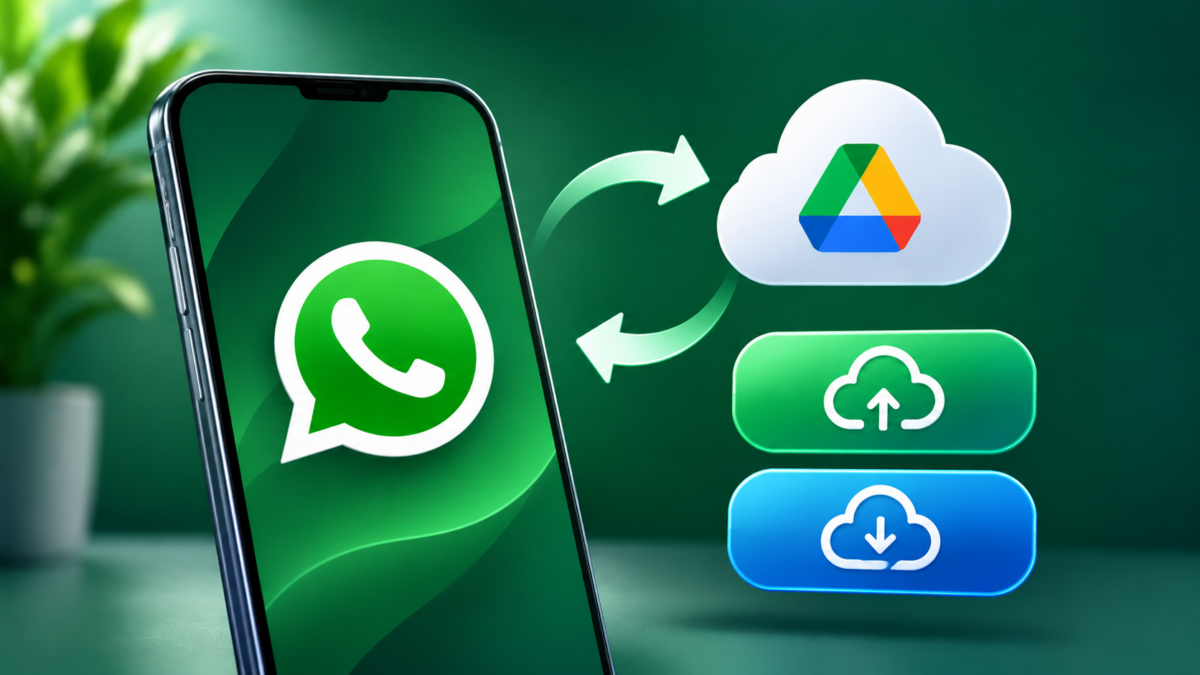

WhatsApp conversations often contain information you may need later, from family photos and voice notes to work messages and important documents. If your phone is lost, damaged, or replaced, a recent backup can help bring those conversations back. On Android, WhatsApp can save a chat backup to your Google Account, then use it when you reinstall the app or set up another Android phone.
The important part is checking that the backup actually completed before you need it. You also need the same phone number and Google Account when restoring. Follow these steps to create a backup, protect it, and recover your chats without accidentally replacing the copy you need.
Before you back up your WhatsApp chats
Check a few things before starting. Your Android phone should have:
- The Google Account you want to use added to the phone.
- Google Play services installed.
- Enough free space on the phone and in the Google Account.
- A stable internet connection. Wi-Fi is recommended for large backups.
- Your WhatsApp account active with the phone number linked to the backup.
Keep the phone connected to power during the first backup. It can take longer if you have years of messages, photos, videos, or voice notes.
One detail is easy to miss: WhatsApp keeps only one Google Account backup for each phone number. A new backup replaces the previous one. If you are trying to recover chats that have already disappeared, do not press Back up, delete the existing backup, or reset the phone before checking what is available.
Check when WhatsApp last backed up your chats
- Open WhatsApp on your Android phone.
- Tap the three-dot menu and choose Settings.
- Open Chats, then tap Chat backup.
- Look for the last backup time and its size.
If the date is old, create a fresh backup while the chats you want to keep are still visible. If you are restoring an older copy to recover missing messages, do not create a new backup first because it may overwrite the only cloud copy that contains those messages.
How to back up WhatsApp chats to a Google Account
WhatsApp’s menu can look slightly different depending on the app version and rollout. On some phones, the Google Account and backup schedule appear directly on the Chat backup screen. In newer versions, you may first see a Cloud backup option.
- Open WhatsApp and go to Settings.
- Tap Chats and then Chat backup.
- If you see Cloud backup, open it and select Google. Follow the prompt to turn on backups. If that option is not shown, look for Google Account or Back up to Google Account on the Chat backup screen.
- Choose the Google Account where you want the backup stored. If the account is not listed, use the option to add an account and sign in.
- Choose an automatic backup schedule, such as daily, weekly, or monthly. If you only want to back up manually, select the option that says you will tap Back up yourself.
- Decide whether to turn on Include videos in chats. Videos can make a backup much larger, so enable this only if you want them included.
- Check the mobile-data option. Leave Back up over mobile data off if you want to avoid using your data allowance; connect to Wi-Fi instead.
- Return to the backup screen and tap Back up to start a backup now.
Leave WhatsApp open while the first backup is being prepared, keep the phone connected to Wi-Fi and power, and wait for the last-backup time to update. Do not assume the process is finished just because the progress indicator has moved.
WhatsApp’s official chat backup instructions describe the current Google Account and backup options. If the wording on your screen is different, check that guide before changing accounts or deleting anything.
Protect the backup with end-to-end encryption
A Google Account backup can be protected with WhatsApp’s optional end-to-end encrypted backup setting. This is separate from the encryption that protects messages while they travel between people. When you enable it, the backup is protected by a passkey, a password, or a 64-digit encryption key, depending on the options available on your device.
- Open WhatsApp Settings.
- Tap Chats, then Chat backup.
- Choose End-to-end encrypted backup.
- Tap Use passkey if that option is available. Otherwise, open More options to choose a password or 64-digit encryption key.
- Follow the on-screen steps and securely save the credential you choose.
Passkey support requires Android 9 or later, a supported Google Play services version, and a screen lock such as a PIN, password, or pattern. If the passkey option is missing, update WhatsApp and Google Play services and check again later; the other protection methods may still be offered.
Do not enable encrypted backups and then forget the credential. WhatsApp says it cannot provide a lost password or key, reset it, or restore the encrypted backup without the original passkey, password, or key. Its encrypted backup guide explains the available methods. Abijita has also covered WhatsApp’s passkey protection for encrypted backups.
How to restore WhatsApp chats on a new Android phone
Before reinstalling WhatsApp, make sure the backup is visible on the old phone and note its date and size. On the new phone, add the same Google Account that was used for the backup. You must also verify the same WhatsApp phone number.
- Install WhatsApp from the Google Play Store on the new Android phone.
- Open the app and verify the phone number used when the backup was created.
- When WhatsApp finds the backup, check that the account and backup details are the ones you expect.
- Tap Restore when prompted. If you still need the old messages, do not tap Skip.
- If the backup is end-to-end encrypted, enter the passkey, password, or 64-digit key that was used to protect it.
- Keep the phone connected to Wi-Fi and a power source while the restore runs.
WhatsApp restores messages first. Photos, videos, and other media may continue downloading in the background, so some items might not appear immediately. Keep the app open until your chats return, and allow the media restore to finish.
There is no Restore button in the Chat backup settings. WhatsApp offers the restore option during the app’s initial setup after you verify your number. If you have already completed setup and skipped the prompt, check that the backup still exists before reinstalling WhatsApp and trying again. The official restore guide explains the process and its limitations.
What to do if WhatsApp cannot find or restore the backup
- Check the Google Account: Make sure the phone is signed in to the exact account used when the backup was created. Having a different Gmail account on the phone will not show the old backup.
- Check the phone number: The number used to create the backup must be the same number you verify during restoration. If you changed numbers, use WhatsApp’s Change Number feature on the old phone before making a new backup.
- Check storage: Free space is needed both in the Google Account and on the new phone. The phone needs more available space than the backup you are trying to restore.
- Check Google Play services and permissions: Update Google Play services and make sure WhatsApp has the permissions it requests for the restore.
- Use a stable connection: Try a reliable Wi-Fi connection, keep the phone charged, and avoid switching networks while the backup is running.
- Check the encryption credential: If encrypted backup is enabled, the correct passkey, password, or key is required. Turning encryption off later does not unlock an existing encrypted backup.
- Check the video setting: Videos are restored only if Include videos was enabled before the backup was created.
If the backup is stuck, WhatsApp also recommends restarting the phone, checking the internet connection, closing and reopening the app, and making sure the SIM connected to your WhatsApp number is active on dual-SIM devices. If you suspect someone has accessed your account, review linked devices and follow the steps to secure your WhatsApp account before relying on a new backup.
Important limits to remember
A Google Account backup is tied to both the Google Account and the WhatsApp phone number used to create it. It is not a folder of readable chat files that you can open in Google Drive. WhatsApp uses the backup to restore chats inside the app. Each new backup replaces the previous one, and messages received after the last successful backup will not be included.
If this article helped you, please consider supporting our work. Every small contribution keeps Abijita.com independent and running.

Google Account backups also cannot be restored directly to an iPhone. If you are moving from Android to iPhone, use WhatsApp’s supported chat-transfer process rather than trying to restore the Google backup on iOS. If the old Android phone still works and you do not want to use cloud storage, WhatsApp’s built-in Transfer chats option can move conversations directly between Android phones.







SIGN UP FOR NEWSLETTERS
Please confirm your email address.
Sign up for cybersecurity newsletter and get latest news updates delivered straight to your inbox. You are also consenting to our Privacy Policy and Terms of Use.