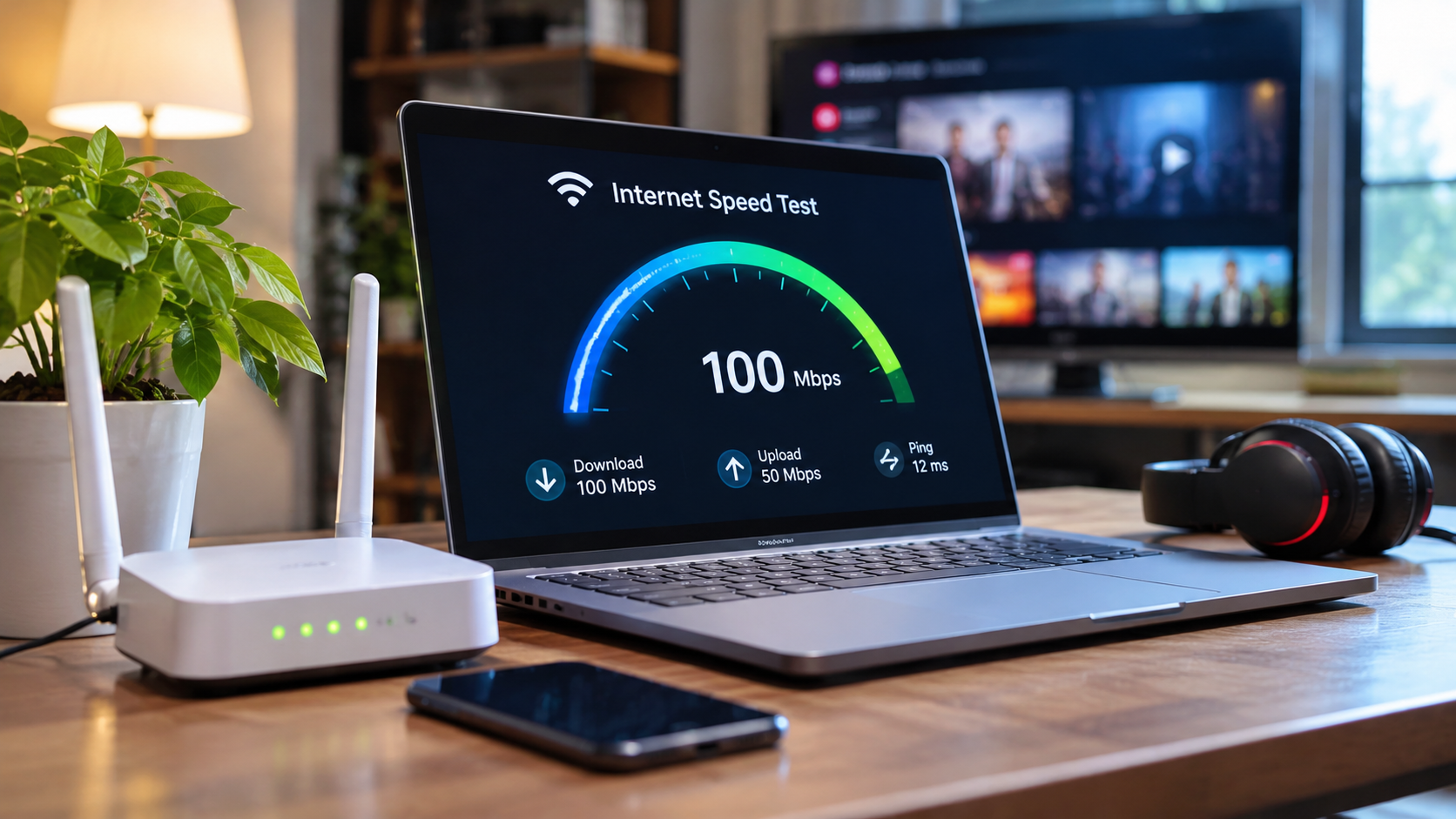



You pay for a 100 Mbps internet plan, run a speed test and see 62 Mbps. A video call freezes, a YouTube video drops in quality, and someone in the next room says their slower connection works perfectly. It is tempting to blame your internet provider or upgrade to a more expensive package. But the number on your bill is only one part of the story.
Internet speed depends on more than download bandwidth. The connection coming into your home, your router, Wi-Fi coverage, upload capacity, network congestion and the service you are trying to reach all affect what you experience. Here is what 50, 100 and 150 Mbps really mean, how much speed popular apps use, and how to check whether an upgrade is worth paying for.
Mbps Is Not MB/s: The First Number to Understand
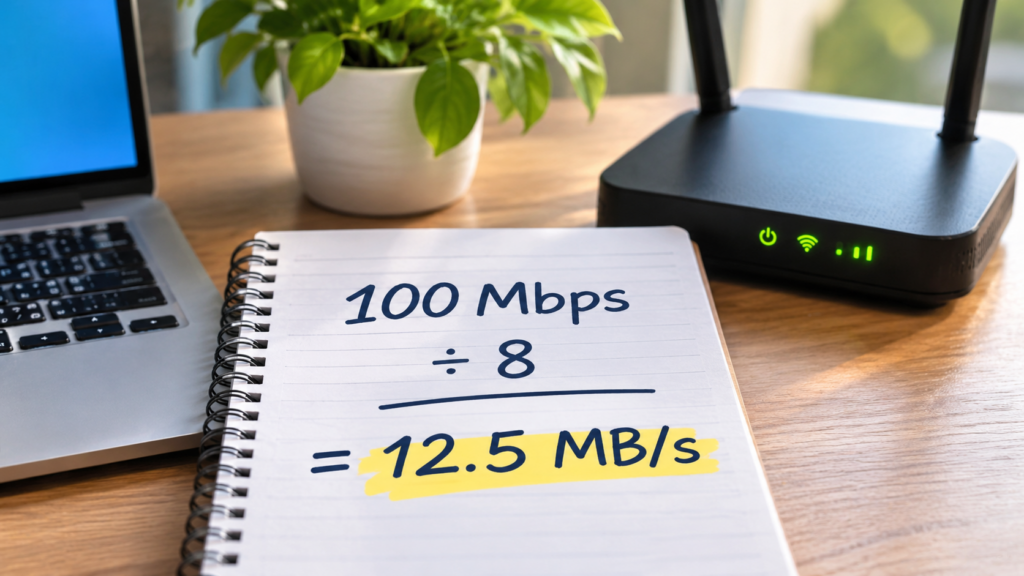
Internet providers advertise speeds in megabits per second (Mbps). Download managers, file sizes and operating systems often show megabytes per second (MB/s). They are not interchangeable: one byte contains eight bits, so divide a speed measured in Mbps by eight to estimate the equivalent download rate in MB/s.
- 50 Mbps is about 6.25 MB/s.
- 100 Mbps is about 12.5 MB/s.
- 150 Mbps is about 18.75 MB/s.
That means a 100 Mbps plan cannot download a file at 100 MB per second. Even under ideal conditions, its theoretical rate is about 12.5 MB/s. Real downloads are usually a little slower because of network overhead, the server sending the file, the route data takes across the internet and the performance of your device or storage drive.
It is also worth checking the unit shown by your speed-test app. A result of 100 Mbps is very different from 100 MB/s. Confusing the two can make a perfectly normal connection look eight times slower than expected.
What “Up To” Really Means on an Internet Plan
When a package is advertised as “up to 100 Mbps,” that wording usually describes the maximum download rate the plan is designed to reach, not a promise that every device will record exactly 100 Mbps at every moment. The actual terms vary by provider, connection technology and country, so check the plan details for typical or minimum speeds as well as the headline figure.
Your speed can change during the day. Some broadband networks have capacity shared among nearby customers, and busy evening periods can put more demand on that capacity. Congestion can also occur elsewhere in the provider’s network or along the route to a particular website. Older or damaged cables, poor connections and faulty equipment can cause separate problems.
The server matters too. A speed test may connect to a nearby test server with plenty of capacity, while a game launcher, cloud service or overseas website may be slower at that moment. A single test result does not prove that your provider is delivering—or failing to deliver—the speed in your contract.
There is no universal rule that every healthy connection must reach 80 to 95 percent of its advertised speed. Providers use different technologies and service terms. The useful comparison is a series of tests taken correctly, against the speeds your provider says it should deliver.
Your Wi-Fi May Be Slower Than the Internet Connection
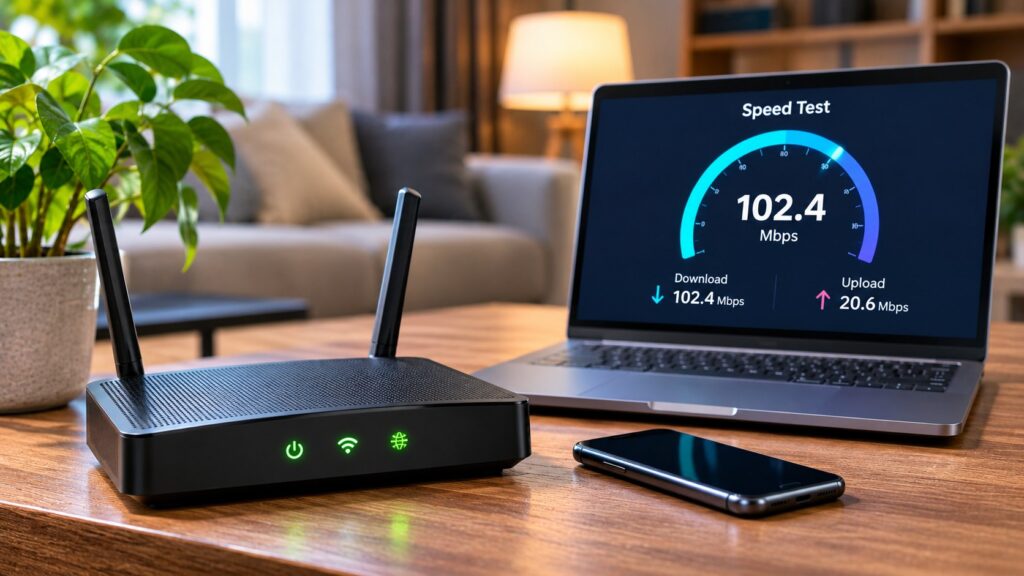
The speed reaching your home router is not necessarily the speed your phone receives in the bedroom. Wi-Fi is a radio connection, and its performance changes with distance, walls, floors, interference, router placement and the capabilities of the device connecting to it.
The 2.4 GHz Wi-Fi band generally reaches farther and passes through obstacles more effectively, but it is slower and often more crowded. The 5 GHz band can deliver higher speeds over shorter distances, although walls and floors can weaken it more quickly. Newer equipment may also support 6 GHz, but both the router and the connected device need compatible hardware.
Connected devices share the available wireless capacity. A television streaming a film, a console downloading an update, phones backing up photos and security cameras uploading video can all compete for airtime or internet bandwidth. The router may also struggle if it is old, poorly placed or handling more connections than it was designed for.
A quick way to separate a Wi-Fi problem from a broadband problem is to connect a laptop to the router with an Ethernet cable and run the same speed test. Then repeat the test on Wi-Fi beside the router and in the room where you notice slowdowns. If the wired result is strong but the distant Wi-Fi result is poor, upgrading the internet package may not fix the problem.
Moving the router to an open, central and elevated position can help. Use 5 GHz for nearby devices that need higher throughput, keep the router’s firmware updated and review the channels used by nearby networks. Abijita’s guide to choosing the right Wi-Fi router channel explains one way to reduce interference.
A Wi-Fi 6 or Wi-Fi 7 router can improve wireless performance when the router and devices support the standard, but a new router cannot increase the speed supplied by your ISP. Mesh systems can improve coverage in larger homes, although a wireless link between mesh units may reduce the speed available at the far end.
Download Speed Is Only Part of the Experience
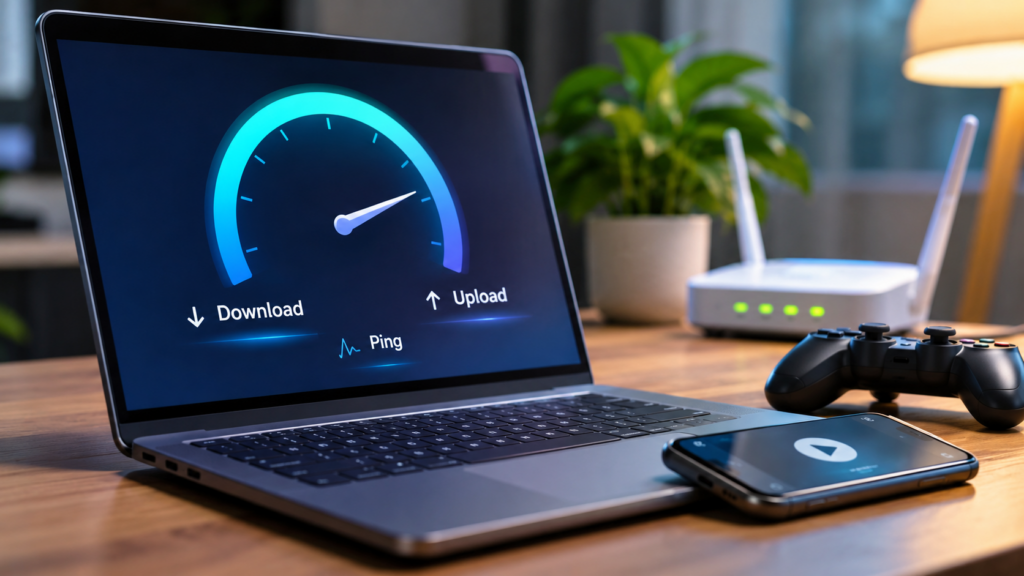
Four measurements help explain why a connection can feel slow even when a speed test shows a large download number.
- Download speed measures how quickly data reaches your device. It affects streaming, browsing, downloads and receiving files.
- Upload speed measures how quickly your device sends data out. It matters for video calls, livestreaming, sending large files and cloud backups. Some plans offer much less upload capacity than download capacity.
- Latency or ping measures the time it takes data to travel to a server and back, usually in milliseconds. Lower latency is important for responsive gaming, voice calls and remote desktops.
- Jitter and packet loss describe connection stability. Jitter is variation in delay; packet loss means some data does not arrive. Both can cause robotic audio, frozen calls and inconsistent gameplay.
Think of download speed as the number of lanes on a road, latency as the time it takes to reach the destination, and stability as the condition of the road. A 150 Mbps connection with high latency or packet loss can feel worse during a game or video call than a stable 50 Mbps connection.
How Much Speed Do Facebook, TikTok, YouTube and Netflix Need?

Scrolling through social feeds, watching short videos and browsing websites generally do not require a huge internet package on their own. The amount of bandwidth changes with video quality, autoplay, the number of active streams and what else is happening on your network. A short-video app can use more data while a video is playing than when you are simply reading text or looking at photos.
For video services, the providers publish useful reference figures. Netflix recommends at least 5 Mbps for Full HD 1080p and 15 Mbps for 4K streaming. YouTube lists sustained speeds of about 2.5 Mbps for 720p, 5 Mbps for 1080p and 20 Mbps for 4K playback. These are per-stream recommendations, not the amount an entire household needs.
Video-call requirements also depend on the call. Zoom recommends about 1.2 Mbps in both directions for a one-to-one 720p HD call. For a 720p group meeting, its guidance is 2.6 Mbps download and 1.8 Mbps upload. Higher-quality group video needs more. The app can adjust quality to suit the connection, so these figures are guidance rather than a guarantee of call quality.
- Facebook and Instagram: ordinary browsing and scrolling use relatively little bandwidth, while autoplaying video and live content need a steadier connection.
- TikTok and Reels: short videos can load quickly on a modest connection, but several people watching at once increase the household’s total demand.
- YouTube 720p: around 2.5 Mbps sustained.
- YouTube 1080p: around 5 Mbps sustained.
- YouTube 4K: around 20 Mbps sustained.
- Netflix HD: at least 5 Mbps recommended for 1080p.
- Netflix 4K: at least 15 Mbps recommended.
- Zoom: a 720p one-to-one call needs around 1.2 Mbps in both directions; group calls need more upload and download capacity.
- Online gaming: gameplay itself often uses less bandwidth than video streaming or large downloads. Low latency, low packet loss and a stable connection are usually more important than having the highest Mbps plan.
For one person, a 50 Mbps plan can comfortably cover everyday browsing, social media, a video call and a 1080p stream, provided the connection is stable. Problems usually appear when several high-resolution streams, large downloads and uploads are happening at the same time.
Official guidance: Netflix’s recommended internet speeds, YouTube’s recommended sustained playback speeds and Zoom’s bandwidth requirements.
50 Mbps vs 100 Mbps vs 150 Mbps: Which Plan Makes Sense?
The best plan depends on how many people use the connection at the same time, what they do online and whether they regularly move large files. These examples assume a reasonably good router and usable Wi-Fi coverage. They are practical starting points, not fixed limits for every household.
50 Mbps: Enough for Many Smaller Households
A 50 Mbps plan is often enough for one or two people who browse, use social media, attend video calls and stream in HD. It can also handle several everyday activities at once when the connection is stable. The limit becomes more noticeable when multiple people stream in 4K, download large games or send big files while others are working.
100 Mbps: A Practical Middle Ground for Families
For a household with three or four regular users, 100 Mbps provides more room for simultaneous streaming, online classes, remote work, gaming and software updates. It does not make every website load twice as fast as a 50 Mbps plan, but it gives the household more total capacity when several devices are active.
150 Mbps: More Headroom for Busy Homes
A 150 Mbps plan is useful in a larger household, a shared apartment or a home where several people stream high-resolution video, download games and work online at the same time. It can also reduce waiting time for large downloads. For one or two people doing ordinary browsing and HD streaming, the difference between 100 and 150 Mbps may be difficult to notice.
A simple starting guide is 25 to 50 Mbps for one or two lighter users, 75 to 100 Mbps for three or four people with mixed streaming and work, and 150 Mbps or more for larger households with several simultaneous high-bandwidth activities. Add some spare capacity for busy periods rather than planning around the exact minimum each app needs.
What a 50 GB Game Download Looks Like on Each Plan
Large downloads make the difference between speed tiers easier to see. A 50 GB file contains roughly 400 gigabits of data when using decimal units. At a perfectly sustained rate, the calculation looks like this:
- 50 Mbps: about 2 hours and 13 minutes.
- 100 Mbps: about 1 hour and 7 minutes.
- 150 Mbps: about 44 minutes and 30 seconds.
These are theoretical estimates, not download-time promises. Real downloads can take longer because of protocol overhead, Wi-Fi limits, server capacity, network congestion, other household traffic and the way the platform measures file size. A game server may also limit the rate even when your broadband connection has spare capacity.
When Should You Upgrade Your Internet Plan?
Consider a faster plan when several people regularly use the connection at once, when multiple 4K streams compete for bandwidth, or when large game downloads, cloud backups and work files are part of your normal routine. Content creators and remote workers should pay close attention to upload speed as well as download speed. A package with a higher download figure but very limited upload capacity may not solve slow video uploads or unreliable calls.
Hold off on upgrading if the slowdown happens mainly in rooms far from the router, if an Ethernet test already reaches the speed included in your package, or if your main problem is gaming lag rather than slow downloads. Those symptoms point toward Wi-Fi coverage, latency, packet loss or the route to a particular service. Abijita’s guide on fixing common internet problems at home covers additional checks before you call your provider.
How to Test Your Real Internet Speed Properly
One quick test on a phone is not enough to judge an internet package. Use a repeatable process so you can see whether a slowdown comes from the ISP connection, the router or the Wi-Fi signal.
- Start with Ethernet. Connect a laptop to a LAN port on your router with a network cable. Pause large downloads and cloud backups, disconnect unnecessary VPN sessions and run a speed test. This gives you a better baseline than testing across a weak Wi-Fi signal.
- Test Wi-Fi beside the router. Run the same test on a phone or laptop close to the router. A large difference between Ethernet and nearby Wi-Fi may point to the router, wireless settings or device capability.
- Test from the room where you notice problems. Repeat the Wi-Fi test in a bedroom or office. If performance drops sharply with distance, improve coverage before paying for a faster broadband tier.
- Repeat at different times. Test in the morning, afternoon and busy evening hours over more than one day. Note the time, download speed, upload speed, ping and whether you used Ethernet or Wi-Fi.
- Check the devices using your connection. Look for console updates, cloud photo backups, security-camera uploads and other background transfers that may be using bandwidth.
- Check your router placement and software. Keep it in an open, central location, install official firmware updates and review the Wi-Fi band and channel. Restarting the router can help with a temporary fault, but it will not repair a damaged line or solve persistent congestion.
If your wired tests repeatedly fall below the speeds stated in your plan, save screenshots and contact your ISP. Ask for the typical and minimum download speeds at peak hours, the exact upload speed, and whether the package has a Fair Usage Policy or data cap. Also ask what happens after any usage threshold is reached and whether the provider can check the line or local network for faults.
If this article helped you, please consider supporting our work. Every small contribution keeps Abijita.com independent and running.

Keep the test records with their dates and times, the device used, whether the connection was wired or wireless, and the speed-test server. That gives your provider something specific to investigate instead of a general report that the internet feels slow.

50, 100 or 150 Mbps? What Internet Speed Do You Really Need?