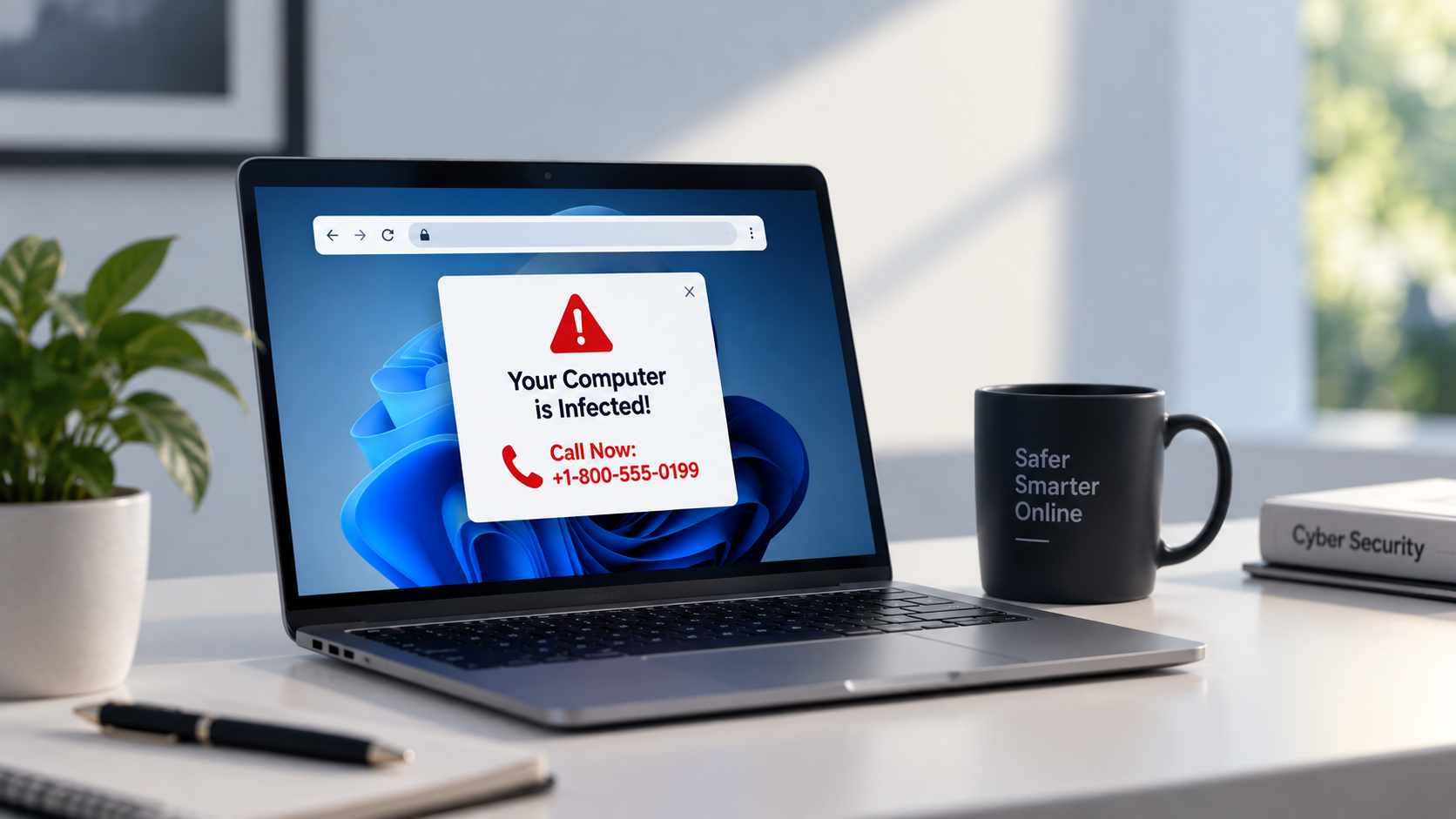



A pop-up suddenly appears on your computer warning that your device is infected. It may say your files are at risk, your Windows license has expired, or hackers are trying to access your system. In some cases, the message even gives you a phone number and tells you to call immediately.
It can look serious. But often, the warning itself is the scam.
Fake tech support pop-ups are designed to scare people into calling a number controlled by scammers. Once you call, they may try to convince you to install remote-access software, pay for unnecessary repairs, or hand over passwords and other sensitive information.
The good news is that these scams often leave some obvious clues. Here are some of the things to look for before you pick up the phone.
1. The pop-up tells you to call immediately
One of the clearest warning signs is a pop-up telling you to call a phone number right away.
Legitimate operating systems and browsers generally don’t use random web pages to display emergency technical support numbers. Scammers use urgency because they don’t want you to stop and check whether the warning is genuine.
If a message says “CALL NOW,” “DO NOT SHUT DOWN,” or “YOUR COMPUTER IS INFECTED,” don’t call the number. Close the page and investigate the issue separately.
2. It says your computer is infected
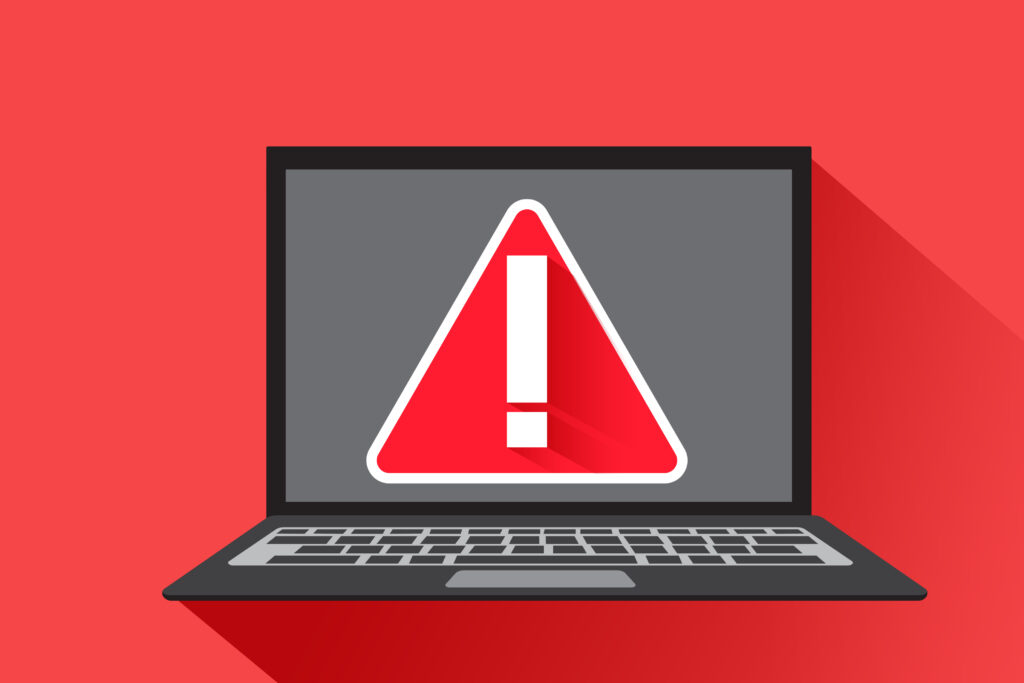
A suspicious website may claim that it has detected viruses, spyware, banking malware or other threats on your computer.
That doesn’t necessarily mean anything has actually been detected.
A webpage can display a convincing warning, but simply seeing the message doesn’t prove that the site has scanned your computer. Many fake support scams use nothing more than a webpage designed to look like a security alert.
If the warning appeared immediately after visiting a website, be particularly cautious.
3. It uses familiar company logos
Fake support pages often copy the logos and designs of well-known technology companies.
You might see a Windows, Microsoft, Apple, Google or antivirus logo and assume the warning must be legitimate. But putting a company’s logo on a webpage doesn’t make the page official.
Check the website address and think about how the warning appeared. A familiar logo is not proof that you’re dealing with the real company.
4. Your browser suddenly goes full-screen
Some scams make the browser appear as though your entire computer has been locked.
The page might display flashing warnings, play an alarm sound or prevent you from clicking normally. It may even enter full-screen mode to make the situation look more serious.
Don’t assume that this means your computer has been hacked. The webpage may simply be using browser features to create the appearance of a system-level warning.
Try closing the browser normally. If that doesn’t work, use your operating system’s standard controls to close it.
5. It tells you not to turn off your computer
Fake warnings often include instructions such as “Do not restart your computer” or “Do not close this window.”
The purpose is to keep you on the scammer’s webpage and stop you from checking the problem yourself.
A legitimate security notification shouldn’t need to frighten you into keeping a suspicious webpage open. If you’re unsure, close the page rather than following its instructions.
6. It asks you to install remote-access software
This is one of the more serious warning signs.
After you call the number, a scammer may say they need to remotely access your computer to “check” or “repair” it. They may ask you to install remote-access software and provide them with a code or permission to control your device.
Once connected, they could potentially access files, change settings, install unwanted software or look for sensitive information.
Never give an unknown person remote access to your computer because a pop-up told you to call them. If you really need technical support, find the company’s official support website yourself.
7. The caller asks for passwords or payment
A supposed support technician asking for your password, banking information or other sensitive details should immediately raise concerns.
Scammers may also demand payment for a security service or tell you to buy gift cards or send cryptocurrency to fix the supposed problem.
Don’t provide sensitive information just because someone sounds professional or claims to know something about your computer.
8. The warning won’t let you close it
Some fake support pages are designed to make closing the warning difficult. You may get repeated messages, new windows or the same alert appearing again and again.
This doesn’t necessarily mean that your computer has been taken over.
If the browser is stuck, close it using your operating system’s normal controls. On Windows, you can use Task Manager to close an unresponsive browser. When you open the browser again, be careful about restoring the previous tabs.
9. Look carefully at the website address
The address in your browser can provide another important clue.
Scammers may create websites containing words such as “support,” “security,” “Windows” or “antivirus” to make them look legitimate. A website using familiar words in its domain name doesn’t mean it belongs to the company it claims to represent.
If you need help from a technology company, type its official website address yourself or find it through a trusted source rather than using the link or phone number shown in a suspicious pop-up.
10. Don’t let the warning rush you
Perhaps the biggest trick behind these scams is urgency.
A fake warning may tell you that your bank account is at risk, your files are being deleted or hackers are already inside your computer. The goal is to make you react before you have time to think.
Stop for a moment. Close the suspicious page and investigate the warning independently. If you believe you really need technical support, visit the company’s official website and use the contact information listed there.
What if you already called?
If you’ve already called the number or allowed someone to access your computer, don’t panic. But take action quickly.
Disconnect the computer from the internet if the person still has remote access. Remove any remote-access software you were asked to install and change important passwords, especially for email, banking and other accounts that can be used to reset your passwords.
If this article helped you, please consider supporting our work. Every small contribution keeps Abijita.com independent and running.

If you shared financial information or made a payment, contact your bank or payment provider as soon as possible. It’s also a good idea to run a security scan using trusted security software and check your accounts for anything unusual.
Most importantly, don’t continue working with the person simply because they claim your computer still needs to be repaired.
A scary pop-up doesn’t automatically mean your computer has been hacked. In many cases, the real danger is the person behind the warning trying to convince you that something is wrong.
Taking a few minutes to stop, close the page and verify the warning through an official source can save you from turning a fake pop-up into a much bigger security problem.