


Facebook Pages connected to a Meta Business Portfolio can be managed from Meta Business Suite. If you no longer manage a Page, are reorganizing your business assets or need to separate a Page from a particular portfolio, Meta provides a removal option in Business Settings.
Before you start, understand that removing a Facebook Page from a business portfolio is not the same as deleting the Page. The removal action disconnects the Page from that portfolio. It does not, by itself, permanently delete the Page from Facebook.
What happens when you remove a Facebook Page from a business portfolio?
Meta’s confirmation window says the Page will no longer be part of the business portfolio after removal. It also says people who currently manage the Page will still have access after the removal. The same warning explains that removing the Page will not change your payout account.
Keep these points in mind before proceeding:
- The Page is removed from the selected business portfolio; this action does not delete the Facebook Page itself.
- People who currently manage the Page may retain their existing access, as stated in Meta’s confirmation message.
- The removal does not automatically remove the Page from a payout account.
- Review connected assets and Page permissions before confirming the change.
How to remove a Facebook Page using Meta Business Suite
The main removal process is available in Meta Business Suite. The following steps use the desktop interface shown in our screenshots.
Step 1: Open Meta Business Suite
Visit business.facebook.com and sign in with the Facebook account that has the required access to the business portfolio. If you manage more than one portfolio, select the correct business before continuing.
Open Settings using the gear icon. In the settings navigation, find the Business assets section.
Step 2: Open Pages under Business assets
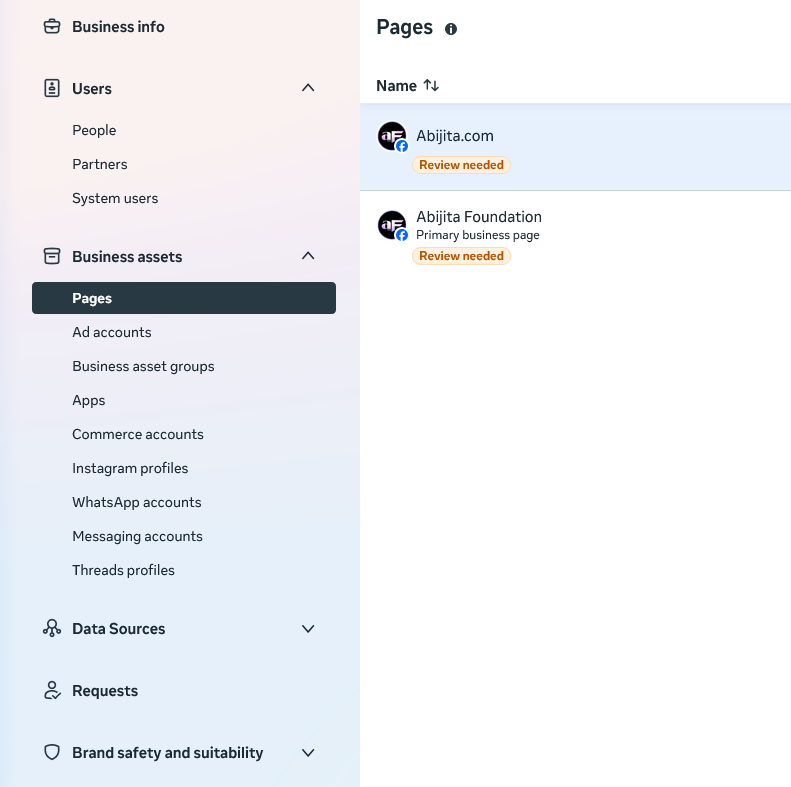
Under Business assets, select Pages. Meta will show the Facebook Pages associated with the selected business portfolio. Check that you are viewing the correct portfolio before making changes.
Step 3: Select the Facebook Page
Find the Page you want to disconnect and select its name. The details panel on the right displays information about the selected Page, including people assigned to it, partners and connected assets.
Check the Page name carefully. If your business portfolio contains multiple Pages, selecting the wrong one could disconnect an asset you still need.
Step 4: Click Remove
In the selected Page’s details panel, look near the upper-right corner for the Remove button. Depending on the layout, it may appear alongside options such as View on Facebook and Boost. Click Remove to open the confirmation window.
Step 5: Read the warning and confirm
Meta displays a dialog titled Remove Page from business portfolio. Read the message before confirming. It explains that the Page will no longer be part of the business portfolio, while people who currently manage it will still have access after removal.
The dialog also states that the action will not change your payout account. If you need to remove the Page from a payout account, Meta directs users to contact Payout Support.
If the Page name and warning are correct, click the blue Remove Page from business portfolio button. After Meta processes the request, return to Business assets > Pages and check whether the Page is still listed in that portfolio.
How to check Facebook Page access before removing it
You can review the people who have access to a Facebook Page through Facebook’s own settings. This is a useful check before removing the Page from a business portfolio, especially if other administrators, employees or an agency help manage it.
Step 1: Open the Facebook account menu
Log in to Facebook and click your profile picture in the upper-right corner. From the account menu, select Settings & privacy.
Step 2: Select Settings
In the Settings & privacy menu, select Settings to open the main settings interface.
Step 3: Find Page setup
Look for the Audience and visibility section in the settings navigation and select Page setup.
Step 4: Open Page access
Inside Page setup, select Page access. This area lets you review who can manage the Page and the type of access assigned to them.
Step 5: Review people and permissions
The Page access screen may show categories such as People with full control, People with partial access, People not in business portfolio and Community Managers. Review the entries to understand who has access and what permissions they hold.
Note: Page access is where you review and manage permissions. It is not the same as the business portfolio removal control. To disconnect the Page from the portfolio, return to Meta Business Suite and use the Remove option under Business assets > Pages.
Why is the Remove button missing?
If the Remove option is unavailable, check the following possibilities before trying again.
Your account may not have the required business access
Make sure the account you are using has the permissions needed to manage the business portfolio and its Page assets. Having access to the Facebook Page itself does not necessarily mean you can remove it from the portfolio.
The Page may have a connected Instagram account
Some asset relationships can affect removal. Meta’s business asset documentation describes restrictions involving connected Instagram business accounts in certain Page-removal situations. Review the connected assets shown in the Page details panel and follow any specific instructions Meta displays.
You may be viewing a different business portfolio
If a Page is associated with another business, check that you have selected the portfolio that manages the asset. Switching to the correct business may reveal the relevant Page controls.
There may be an ownership or access restriction
Review the Page’s ownership information, current permissions and connected assets. If Meta displays a specific error or asks you to resolve an issue first, follow that message rather than repeatedly attempting the same action.
Frequently asked questions
Can I remove a Facebook Page from a business portfolio without deleting it?
Yes. The Remove Page from business portfolio option disconnects the Page from that portfolio. It does not, by itself, permanently delete the Facebook Page.
Will other administrators lose access after removal?
Meta’s confirmation message says that people who currently manage the Page will still have access after it is removed from the business portfolio. Review the Page’s access list before proceeding.
Will removing the Page affect my payout account?
The confirmation dialog shown by Meta says that removing the Page from the business portfolio will not change the payout account. For removal from a payout account, Meta advises contacting Payout Support.
If this article helped you, please consider supporting our work. Every small contribution keeps Abijita.com independent and running.

Can I add the Page to another business portfolio later?
That depends on the Page’s ownership, permissions and existing business associations. Check Meta’s current requirements for adding or claiming a Page before attempting to move it to another portfolio.
Can I remove a Facebook Page using my phone?
You can review Page access through Facebook’s mobile settings. The removal steps in this guide use the Meta Business Suite desktop interface, where the Remove button appears in the Pages section.

How to Remove a Facebook Page from a Business Portfolio