

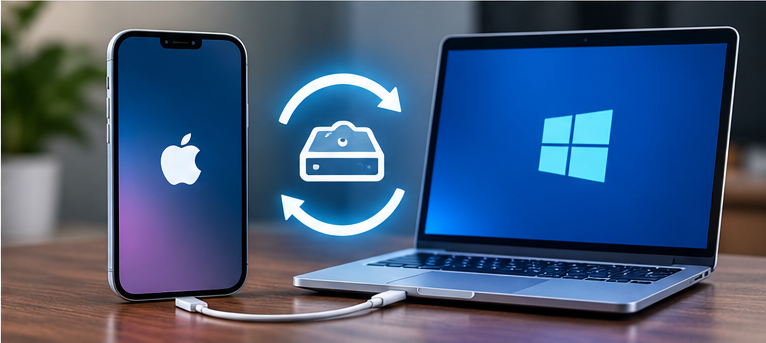

If your iCloud storage is nearly full, or you want another copy of your iPhone data on a computer, you can create a local backup in Windows. Apple’s Apple Devices app handles this on Windows 10 and Windows 11. The backup stays on your PC, so you do not need to upload it to iCloud or pay for extra cloud storage.
A computer backup is useful before replacing an iPhone, sending it for repair, or making a major change to the device. It is also worth keeping alongside an iCloud backup rather than relying on only one copy.
What you need before backing up
- A Windows 10 or Windows 11 PC with enough free storage for the backup.
- The Apple Devices app installed from the Microsoft Store. If the app is not available on your PC, Apple says you can use iTunes for Windows instead.
- A USB or USB-C cable that supports data transfer, not just charging.
- Your iPhone passcode, so you can unlock the phone and approve the computer connection.
Install available Windows, Apple Devices, and iPhone software updates before starting. If the backup is important, connect the laptop to power and avoid disconnecting the phone while the process is running.
How to back up an iPhone to Windows
1. Open Apple Devices and connect your iPhone
Open the Apple Devices app on your PC. Connect the iPhone with a USB cable, then unlock the phone. If the iPhone asks whether to trust the computer, tap Trust and enter your device passcode.
Your iPhone should appear in the app’s sidebar. If it does not, try another cable or USB port and check the troubleshooting steps below.
2. Choose a backup on this computer
Select your iPhone in the sidebar and open General. In the Backups area, choose the option to back up all of the data on your iPhone to this computer. This stores the backup on the Windows PC instead of using iCloud for that backup.
3. Decide whether to encrypt the backup
For most people, enabling Encrypt local backup is the better choice. An encrypted backup can include information that an unencrypted computer backup leaves out, including saved passwords, Wi-Fi settings, website history, Health data, and call history.
Select the encryption option and create a password when Apple Devices asks for one. Store that password somewhere safe, such as a reputable password manager. It is not the same as your iPhone passcode or Apple Account password. If you lose the encrypted-backup password, you cannot use the existing encrypted backup; you will need to reset the backup password and make a new backup.
Encrypted backups still do not contain Face ID, Touch ID, or your device passcode data. Apple also notes that the backup password is required when restoring an encrypted backup.
4. Start the backup and wait for it to finish
Click Back Up Now. Keep the iPhone connected while Apple Devices copies the information to the PC. The first backup can take longer than later ones, especially if the phone contains a large amount of data.
When the process finishes, check the date and time of the latest backup in Apple Devices. You can also open Manage Backups to see the saved backup entries. Do not unplug the phone just because the progress indicator appears to pause for a short time.
How to keep an older backup from being replaced
A new backup normally updates the current backup for that device. If you want to keep a particular restore point, open Manage Backups, right-click the backup you want to preserve, and choose Archive before making another backup. The same menu can show the backup in File Explorer.
Apple says Windows backups are stored in %USERPROFILE%\Apple\MobileSync\Backup. If that folder does not open, try %AppData%\Apple Computer\MobileSync\Backup instead, as described in its backup-location guide. It is safer to use Manage Backups and Show in Explorer rather than renaming, moving, or editing the backup files yourself.
How to restore an iPhone from a Windows backup
To restore a saved backup, connect the iPhone to the same PC, open Apple Devices, and select the device in the sidebar. Choose General, then select Restore Backup. Pick the backup you want by checking its date and size.
If the backup is encrypted, enter the password you created when you made it. Select Restore and keep the iPhone connected while it restarts and finishes syncing.
Be careful before restoring: a restore returns the iPhone to the state saved in that backup. Newer information on the phone may be replaced. If you still need anything added since the backup date, make a fresh backup or copy that information elsewhere first. If the iPhone needs a newer version of iOS to use the backup, update the device when prompted.
What a computer backup does not include
A computer backup contains almost all of the iPhone’s data and settings, but it is not a complete copy of every item on the device. It does not include content already synced and stored in iCloud, such as iCloud Photos or Messages in iCloud. It also excludes App Store and iTunes Store content, Face ID and Touch ID settings, Apple Pay information, and offline maps. Apps and purchased media can usually be downloaded again after a restore.
If you use iCloud Photos, do not assume your full photo library is inside the computer backup. Keep iCloud Photos enabled or import important pictures and videos separately to Windows. If you only need to recover a deleted image, check the Recently Deleted album first; Abijita’s guide to recovering deleted photos and videos on iOS covers other places to look.
Fix common iPhone backup problems on Windows
Apple Devices does not show the iPhone
Unlock the iPhone and check for the Trust This Computer alert. Use a cable that supports data and charging, try another USB port, and restart both devices. Apple also recommends updating Windows and iOS. If you previously tapped Don’t Trust, you may need to reset the iPhone’s location and privacy settings before the trust prompt appears again.
The backup stops or says there is not enough space
Check the free space on the Windows drive. A local backup can be large, and Windows needs room to write it. Close Apple Devices, restart the PC and iPhone, reconnect them, and try again. If you see a specific error, note its wording before changing security software or other system settings.
If this article helped you, please consider supporting our work. Every small contribution keeps Abijita.com independent and running.

You cannot remember the encrypted-backup password
Apple cannot retrieve the old password for you. You can reset the backup password on the iPhone and create a new encrypted backup, but the previous encrypted backup will remain unusable without its original password. Keep the new password in a secure place before relying on the new backup.
For the exact current screens and additional recovery steps, use Apple’s instructions for backing up an iPhone with Windows, restoring from a computer backup, and fixing backup or restore errors.







SIGN UP FOR NEWSLETTERS
Please confirm your email address.
Sign up for cybersecurity newsletter and get latest news updates delivered straight to your inbox. You are also consenting to our Privacy Policy and Terms of Use.