


Chrome extensions can add useful features to your browser, from blocking unwanted ads to managing passwords and checking grammar. But an extension can also receive access to information you view online, including data on websites you sign in to. If a malicious or poorly designed extension gets that access, it may expose browsing activity or interfere with the pages you use.
The challenge is that a harmful extension does not always look suspicious. It may use a familiar name, copy the design of a popular tool or promise a feature that sounds useful. Some extensions may also change their behaviour after an update. Before adding anything to Chrome, take a few minutes to check who made it, what permissions it requests and how it handles your information.
Install extensions from the official Chrome Web Store
Start by looking for the extension in the official Chrome Web Store. Avoid download links from unfamiliar websites, pop-up windows, social media posts or pages that pressure you to install an extension to continue. A page outside the store may direct you to a copycat download or an installer bundled with unwanted software.
Being listed in the Chrome Web Store does not guarantee that an extension is harmless. Google reviews and monitors extensions, but users should still examine each listing. A malicious extension can sometimes pass an initial review or become problematic after it has been updated.
Check the developer’s identity
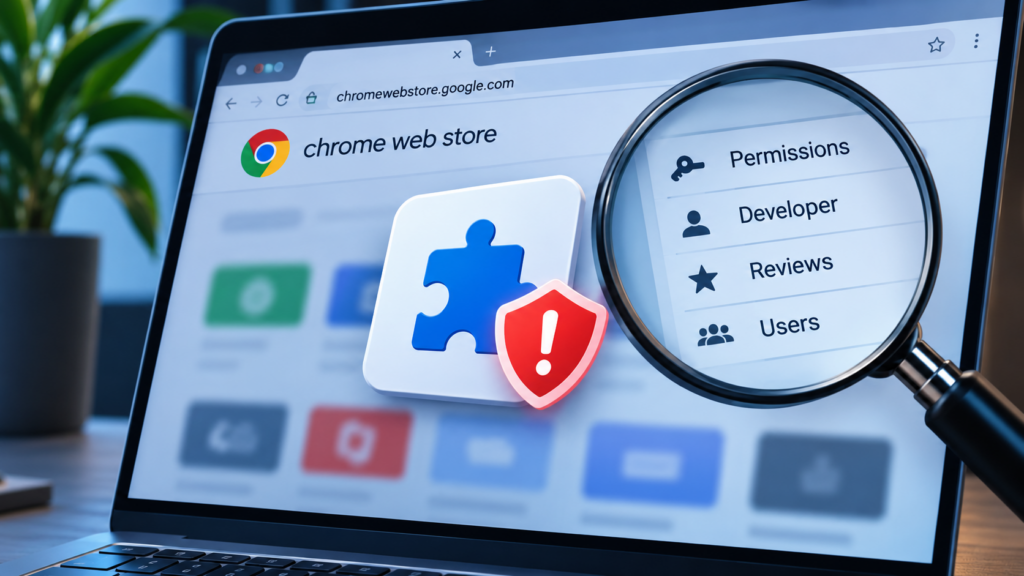
Look at the developer name, website and contact details shown on the extension’s store listing. If the extension claims to come from a well-known company, check whether the developer information matches that company’s official website. Be cautious of names that imitate a legitimate brand with small spelling changes or unfamiliar domains.
Also check whether the developer has other extensions and whether those products have a consistent purpose. A recently created developer account is not automatically suspicious, and a long history is not proof of safety. Treat the information as one part of your assessment rather than a guarantee.
Read the permissions before installing
Permissions are among the most important details to review. Chrome may warn that an extension wants to read and change data on websites you visit, access your browsing history, manage downloads or interact with other browser features. These permissions can be legitimate for some tools, but they may also give an extension access that is broader than its advertised purpose requires.
For example, a simple calculator extension should not normally need to read and change data on every website you visit. A password manager may need access to pages where it fills in login details, but you should still check why it requests each permission. A screenshot tool may need access to the active tab when you use it, rather than permanent access to every site.
Google explains the different permission warnings in its Chrome Web Store permissions guide. Remember that a warning does not prove an extension is malicious. It tells you what access you are being asked to grant, so compare that access with what the extension is supposed to do.
Check the privacy practices and data collection
Open the extension’s privacy information and look for a clear explanation of what data it collects, why it needs that data and whether it shares information with other companies. Be wary of vague statements that do not explain how browsing data is used, or a privacy policy that appears unrelated to the extension.
An extension that handles browsing information should explain that activity in a way that matches its features. For example, a shopping assistant may need information about product pages to compare prices. That does not automatically mean it needs access to unrelated websites, email accounts or private messages.
Google’s Chrome Web Store policies require developers to disclose how they collect, use and share user data, and to limit data use to what is necessary for the extension’s stated purpose. If the listing’s privacy disclosures do not make sense, consider choosing another tool.
Look beyond ratings and user reviews
Ratings and reviews can help you understand whether an extension works as advertised, but they should not be your only security check. Read recent reviews as well as older ones. Look for repeated reports of unexpected advertisements, browser redirects, changes to the homepage or search engine, unexplained permission requests, or features that stopped working after an update.
Be cautious if many reviews use similar wording, appear within a short period or focus on praising the developer without describing the product. Reviews can be manipulated, and a high score does not prove that an extension handles data safely.
Check whether the extension’s features make sense
Compare the extension’s permissions and privacy information with its advertised features. A tool that only changes the colour of a new tab should not need broad access to the contents of every website. A video-related extension may need access to video pages, but requests for unrelated personal information deserve closer scrutiny.
Also watch for exaggerated claims, copied logos, spelling mistakes, unclear descriptions and websites that use countdowns or urgent messages to push an installation. These signs do not prove wrongdoing on their own, but they are reasons to slow down and verify the developer before proceeding.
Limit where an extension can access your data
Some extensions let you restrict access to specific websites or make them run only when you select them. Where available, use that option instead of allowing access on every site. This can reduce the amount of information an extension can reach while you browse.
To review an installed extension, enter chrome://extensions in Chrome’s address bar. Select Details under the extension and look for its site access settings. Depending on the extension, you may be able to choose whether it can read and change data on all sites, on specific sites, or only when you click it.
Review extensions already installed in Chrome
It is worth checking your existing extensions, not just new ones. Open chrome://extensions and remove tools you no longer use or do not recognise. Review the permissions and developer details of the extensions you keep. If an extension has changed its purpose or suddenly asks for access that does not match its features, disable it while you investigate.
Chrome also provides a Safety Check that can flag certain extensions it considers potentially harmful or that may no longer meet its requirements. You can open Chrome’s settings and go to Privacy and security, then select Safety Check. Google also describes how its extension review and monitoring process works in its Chrome security guidance.
What to do if you suspect an extension is malicious
If an extension behaves unexpectedly, disable it first from chrome://extensions. If you do not trust it, select Remove rather than leaving it installed. Restart Chrome and check whether the unwanted behaviour has stopped. If the extension had access to sensitive accounts or information, review those accounts from a trusted device, sign out unfamiliar sessions and change affected passwords. Enable multi-factor authentication where available.
If this article helped you, please consider supporting our work. Every small contribution keeps Abijita.com independent and running.

If you entered payment details or other sensitive information while a suspicious extension was active, contact the relevant bank or service provider if you notice unusual activity. You can also report a suspicious listing through the Chrome Web Store. Keep Chrome updated and run a security scan on your computer if you suspect that other unwanted software may have been installed.
Browser extensions are not inherently unsafe, and many provide useful features. The important step is to check whether the developer is credible, the requested permissions fit the extension’s purpose and its data practices are clearly explained before you give it access to your browsing.